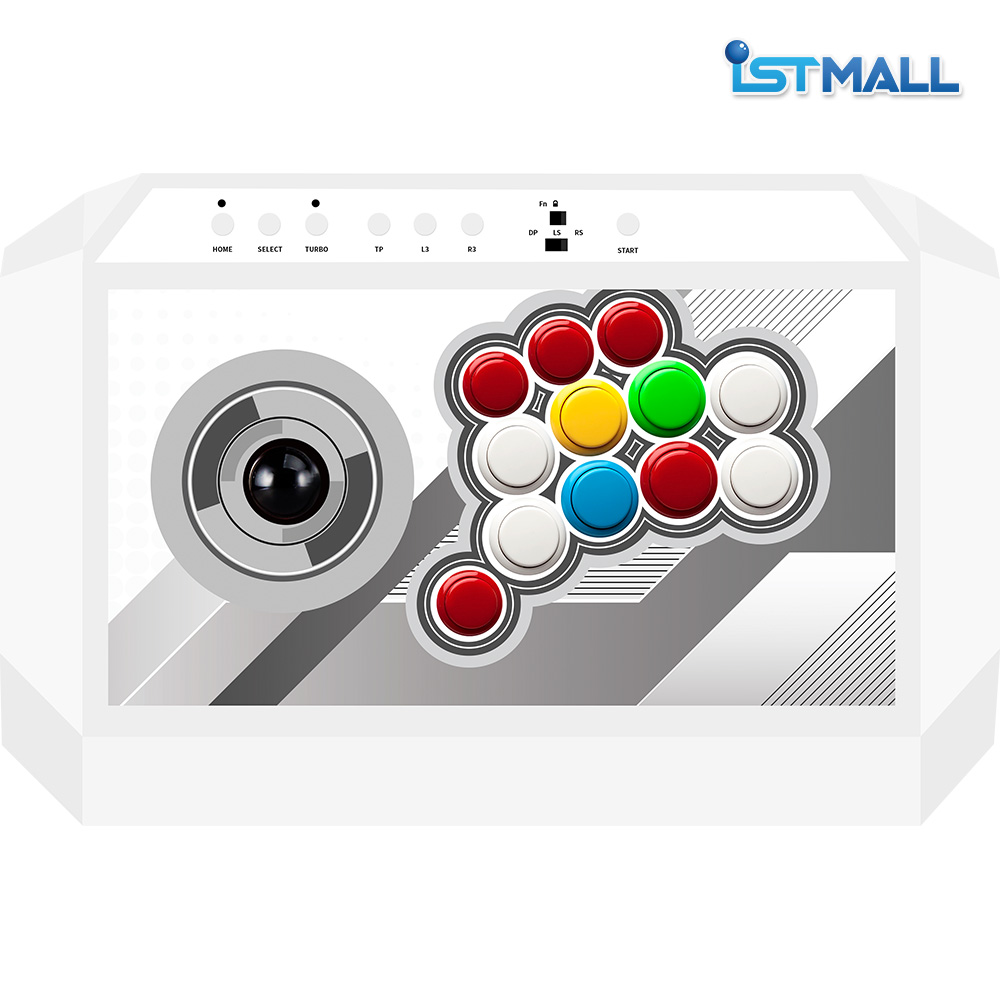
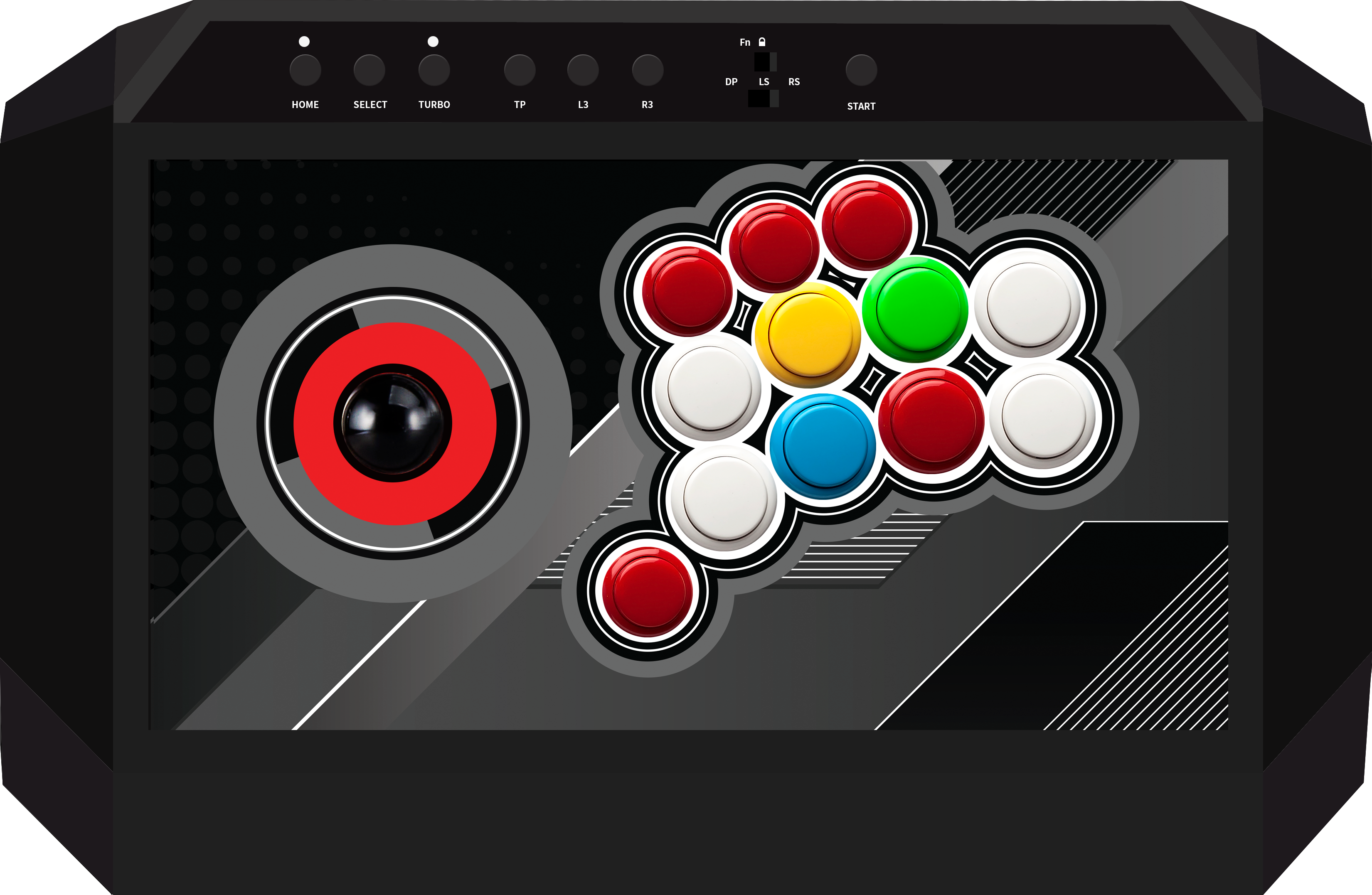
Four directional buttons join the familiar arcade lever. Use the lever, the buttons, or both to suit the move.
Lever + 4 directional buttons8 main buttonsBlack or White
01 · CROSSUP LAYOUT
Put direction at your fingertips.
The four buttons beside the lever send the same directional inputs as the lever. Keep your usual stick technique and bring in the directional buttons whenever you need them.
ARCADE LEVER
Familiar left-hand control
Use the lever for up, down, left and right, just like a traditional arcade stick. Choose a lever that fits your games and play style.
DIRECTIONAL BUTTONS
Direct input with your fingertips
The upper three buttons are Left, Down and Right, from left to right. The lower thumb button is Up. The layout lets you use the lever and directional buttons together.
← LeftLeft of the upper three
↓ DownMiddle of the upper three
→ RightRight of the upper three
↑ UpLower thumb button
How simultaneous opposite cardinal directions (SOCD) are handled depends on the installed board. The PS5 DualSense Wireless model does not support changing the SOCD mode. Check your model’s guide for input handling and setup.
The colors and artwork in the photos illustrate the layout. The finished stick depends on your order configuration.
02 · CHOOSE YOUR BOARD
Choose a model for your platform.
All models share the Cross-up layout. Supported platforms and connection methods depend on the installed board. Check the platform list and any PS5 requirements for your chosen model before ordering.
PC · PS3 · PS4Wired
Tachyon
PC · PS3 · PS4 · Nintendo Switch / Switch 2
The Tachyon board is designed and made in South Korea. On PC, use it as a gamepad or switch to 1P or 2P keyboard mode for games that require keyboard input.
This model uses a built-in Sony DualSense controller. Connect to PS5 by cable or wirelessly, and use the HOME button to turn on the console.
Supports all PS5 games
3.5 mm headphone or headset jack
Includes the original DualSense battery
Wireless connection on PC requires Bluetooth or a separate dongle. PS4, Switch, and Xbox require a separate converter. SOCD mode switching is unavailable.
Before using on PS5 8K Ultra Tachyon Plus supports PS5 fighting games. For full PS5 game support, check the compatibility notes for Brook Gen-5X or PS5 DualSense Wireless, which explicitly list that support.
The speed figures come from the manual for each board. At 8,000 Hz, 0.125 ms is the interval between polls. Total delay from input to on-screen action is a separate measurement. Testing methods and connection setups vary by board, so these numbers alone do not allow a direct comparison.
For wired boards whose platform list omits Android, consult the board manual’s USB OTG instructions. Compatibility can vary by game, app, and connection setup. Check the product options for availability and any price difference.
03 · BUTTON POSITIONS
Numbered guide to the buttons and switches
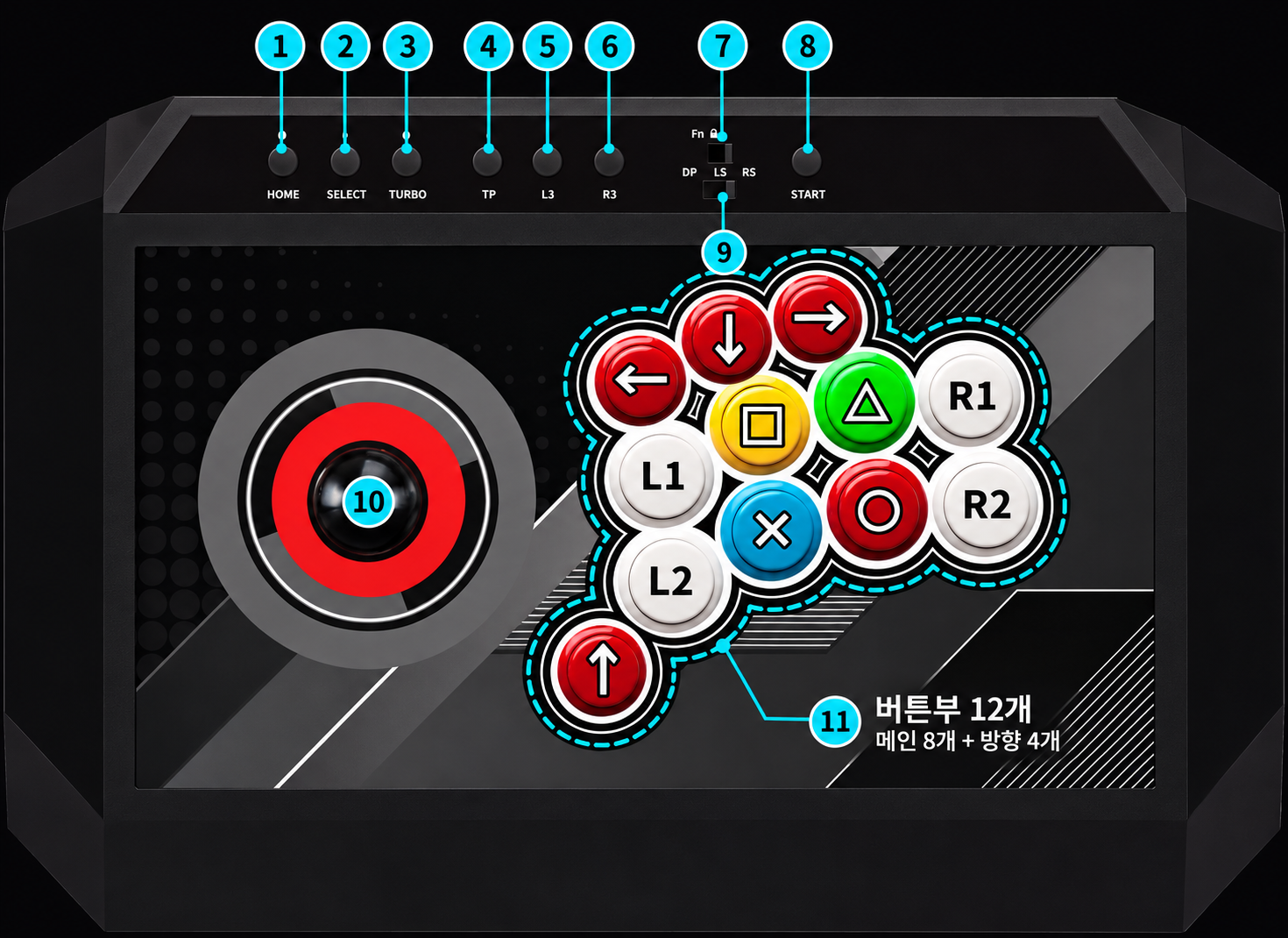
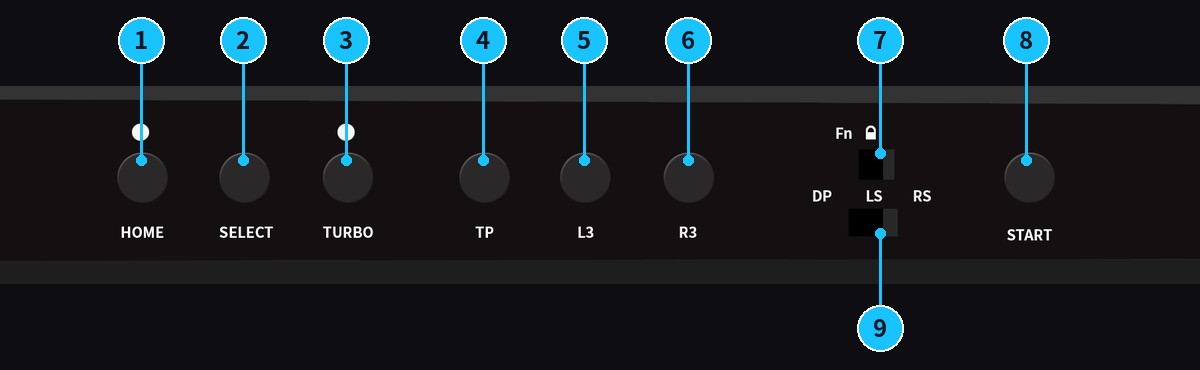
Match numbers 1–11 in the photo to the descriptions below. The button cluster marked 11 has 12 buttons in total: 8 main buttons and 4 directional buttons.
12 BUTTONS8 MAIN + 4 DIRECTIONAL
No. / Control
Input / Function
Description
1HOME
Home screen / PS button / GUIDE / Switch HOME
Opens the home menu on the connected device.
2SELECT
SELECT / SHARE / CREATE / BACK
Sends a share, select, or back input, depending on the connected device.
3TURBO
Turbo setup
Sets turbo for the selected button. On Gen-5 and Gen-5X, use it with START.
4TP
Touchpad click / platform-specific function
Acts as a touchpad click on PS4 and PS5. On Switch, it acts as Capture or −, depending on the board.
5L3
Left stick click
Sends the same input as pressing the left analog stick on a gamepad.
6R3
Right stick click
Sends the same input as pressing the right analog stick on a gamepad.
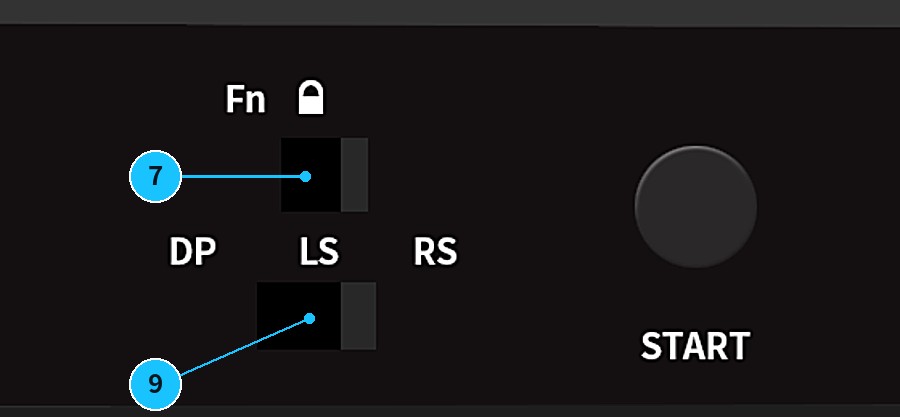
7Fn switch
Top panel button lock
Slide the switch left to LOCK. The lock LED lights up and the top panel function buttons are disabled.
8START
START / OPTIONS / MENU / +
Starts or pauses the game, or opens its menu.
9DP · LS · RS
Joystick input selector
DP sends D-pad input, LS sends left stick input, and RS sends right stick input.
10Joystick lever
Directional input
Defaults to D-pad input. The extra directional buttons send the same type of directional input as the lever.
11Button cluster (12 buttons)
In-game actions and directional input
8 main buttons and 4 directional buttons. The main buttons are arranged L1, □, △, R1 on the top row and L2, ×, ○, R2 on the bottom row. From left to right, the upper directional buttons send ←, ↓, →. The lower thumb button sends ↑.
Printed labels and actual inputs The connected device and installed board determine what each button does. In Switch mode on Brook Gen-5 and Gen-5X, SELECT acts as Capture and TP acts as −. See the corresponding user guide for other button mappings.
04 · MAIN BUTTONS
8 main buttons. 4 separate directional buttons.
The layout below uses the PlayStation labels printed on the stick. Read each row from left to right. As shown in the photo, the buttons follow a curve to match where your fingers rest.
L1Top row 1
□Top row 2
△Top row 3
R1Top row 4
L2Bottom row 1
×Bottom row 2
○Bottom row 3
R2Bottom row 4
Actions such as attacks, jumps, and blocks depend on your button settings in the game. PC XInput mode uses Xbox button names, while Nintendo Switch uses Nintendo button names. Check the button mapping for your platform.
05 · PORTS & OPTIONS
Ports and carrying accessories at a glance
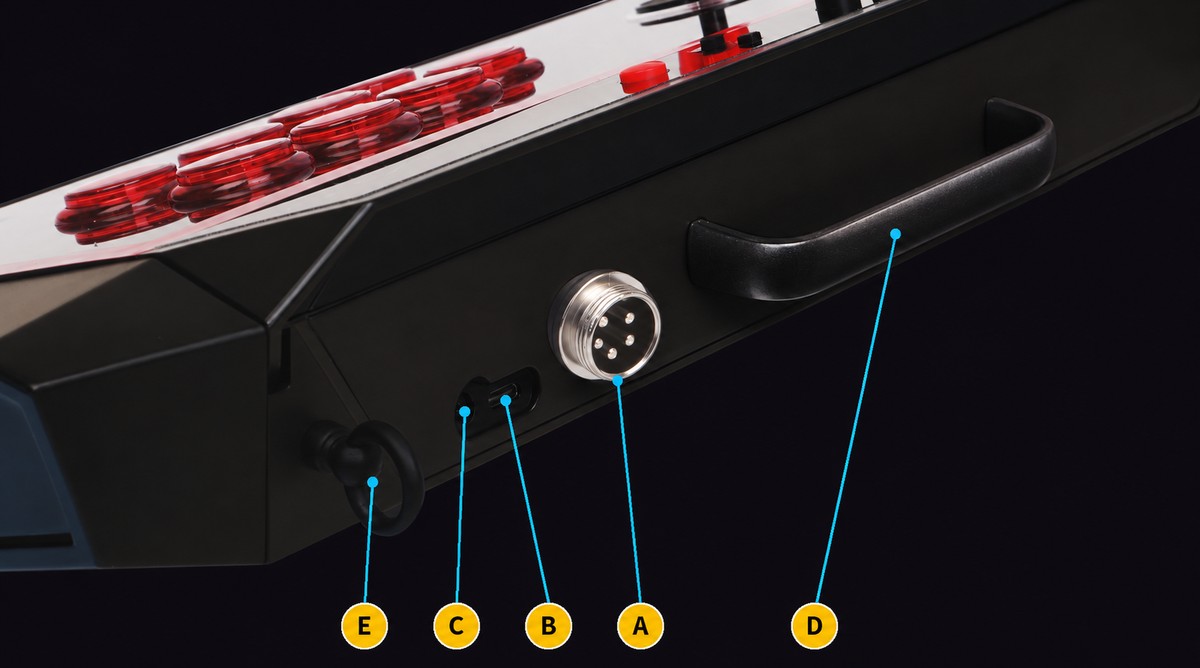
Letter / Part
Description
AFixed USB portOptional add-on
The matching cable screws into this port to hold it in place. The port is fitted when you select this add-on.
BUSB Type-C portStandard connection
Use the included USB Type-C cable to connect to your device. This port also charges the battery on the PS5 DualSense Wireless model.
C3.5 mm headphone jackCheck model compatibility
The PS5 DualSense Wireless is the only model in this listing that supports headphones or a headset. The jack does not carry audio on the other models, even if it is present.
DCarrying handleOptional add-on
Use the handle to carry the stick. It is fitted when you select the carrying handle add-on.
EShoulder strap loopKnee Edition exclusive
Attaches a shoulder strap. The photo shows its location. The standard Cross-up does not include it.
The photo shows optional add-ons and a part exclusive to another edition. A (fixed USB port) and D (carrying handle) are optional. E (strap loop) is exclusive to the Knee Edition.
06 · USEFUL CONTROLS
In-game controls at your fingertips.
Fn LOCK
Lock the top-panel buttons
Slide the Fn switch left to LOCK. The lock LED lights up and disables the top-panel buttons. The lever and main buttons still work. Unlock the panel before switching between DP, LS, and RS.
DP · LS · RS
Choose how the lever sends inputs
DP is the D-pad, LS is the left stick, and RS is the right stick. Set the switch to the directional input your game recognizes.
Hold TURBO and press the button you want to configure. Cycle through Turbo → Auto Fire → Off. Four rates are available: 5, 8, 12, or 20 presses per second.
Brook Gen-5 / Gen-5X
TURBO + START must be held while you press the target button to turn turbo on or off. Choose from five rates: 5, 10, 15, 20, or 25 presses per second.
See the guide for your selected board for instructions on changing the turbo rate and switching device modes.
07 · YOUR OWN PRIME
Choose your colors. Build it to feel right.
BLACK / WHITE
Case color
Choose a black or white case. The artwork and button colors shown are examples and may vary with the options you order.
LEVER / BUTTONS
Lever and button options
Choose the standard lever and buttons or customize how the stick feels with other options. The standard configuration includes a Fanta Lever and Sanwa OBSF-30 Solid Buttons.
CUSTOM ARTWORK
Custom Artwork
Choose Custom Artwork to have your own image printed for the top panel. See the Custom Artwork option for submission instructions or send your artwork to artwork@istmall.co.kr.
OPTIONAL PARTS
Carrying handle and fixed USB port
Select Add Carrying Handle for easier transport or Add Fixed USB Port for a threaded USB port that secures the matching cable.
Check the product options for model and part availability and any extra charges. If your Cross-up has the same board as a standard Prime model, that model’s user guide also applies.
At checkout, select Paypal to pay with PayPal, or select Credit Card to pay by card, Apple Pay, UnionPay or EximPay+. Credit Card payments are processed securely by Eximbay. Available options may vary by country and device.