






- 현재 위치
- HOME > Make Stick Seriese > Fast Shipping
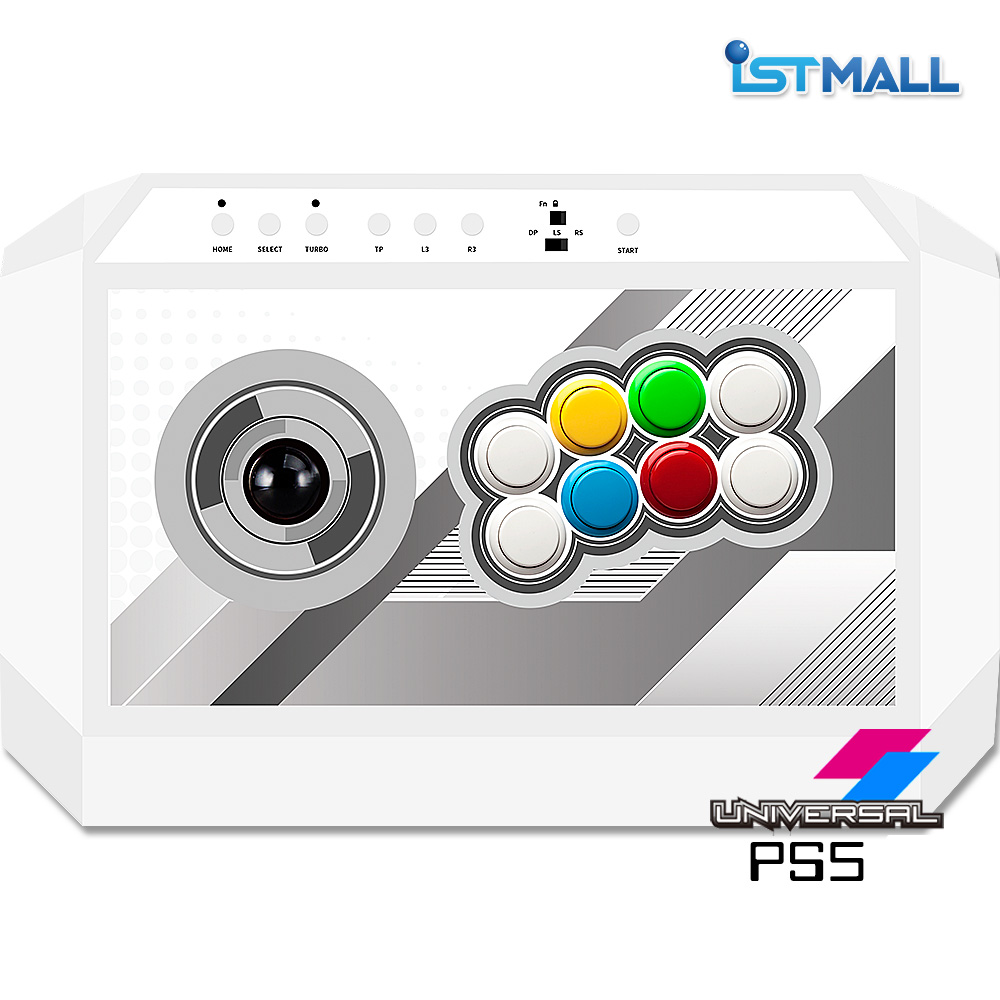
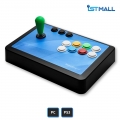
★Ships Today (no options)★ [PC/PS3/PS4/PS5/XBOX/SWITCH] Make Stick X Prime (Universal Fusion Board)
- Mileage
- $2.98
- Weight
- 3.90 Kg
Option
- Case Color :
Total Purchase Amount:
$0


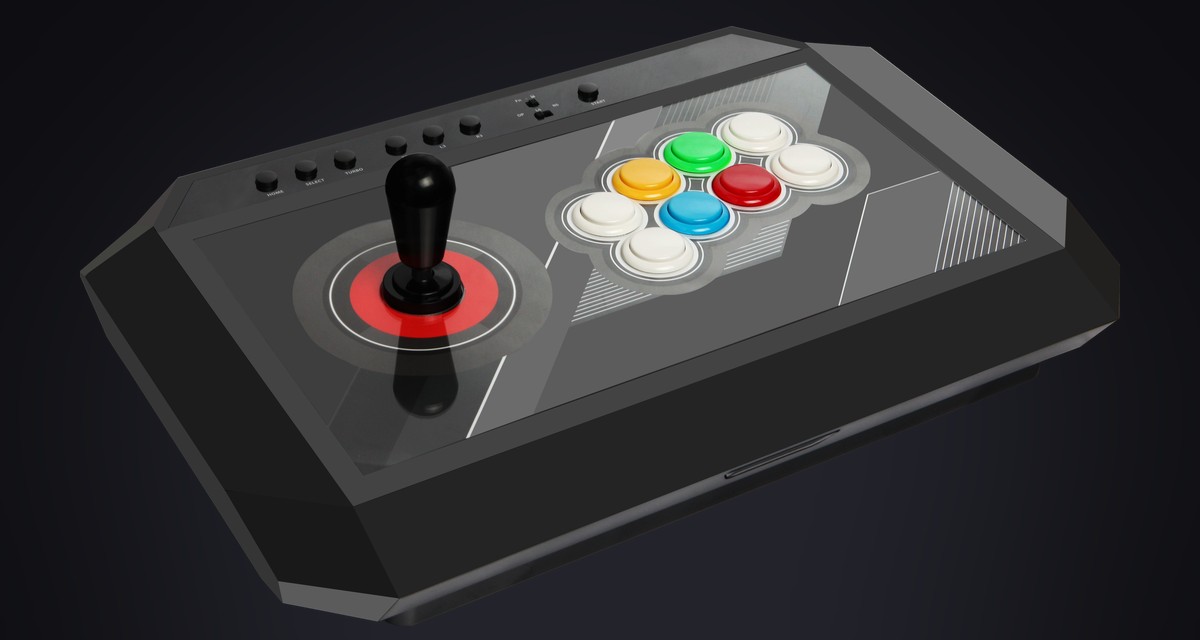
1. Product OverviewThe MakeStick X Prime PS5 Universal is an arcade stick with a built-in Brook Universal Fighting Board Fusion. With 1ms input speed and the widest compatibility in the Prime lineup, a single stick covers everything from PS5 fighting games to retro consoles. Compatible Devices
※ On PS5, the stick may not work properly in games other than fighting games.
※ As of 2024, some Xbox Series X|S consoles may show an "unauthorized accessory" error. In that case we provide beta firmware and lend a converter free of charge. 2. Part Names and Input SignalsControl namesThe numbers in the photos match the numbers in the table. Button names follow the PlayStation labels printed on the product. 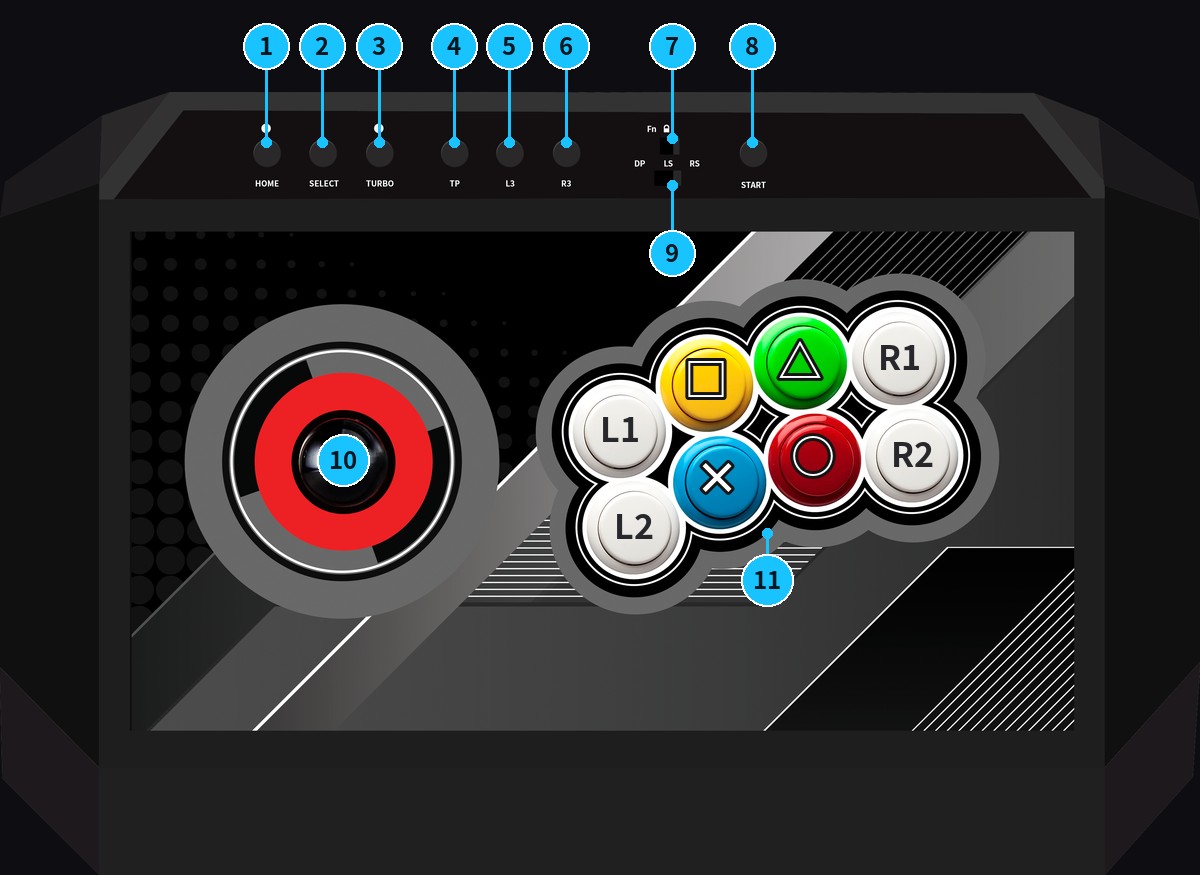 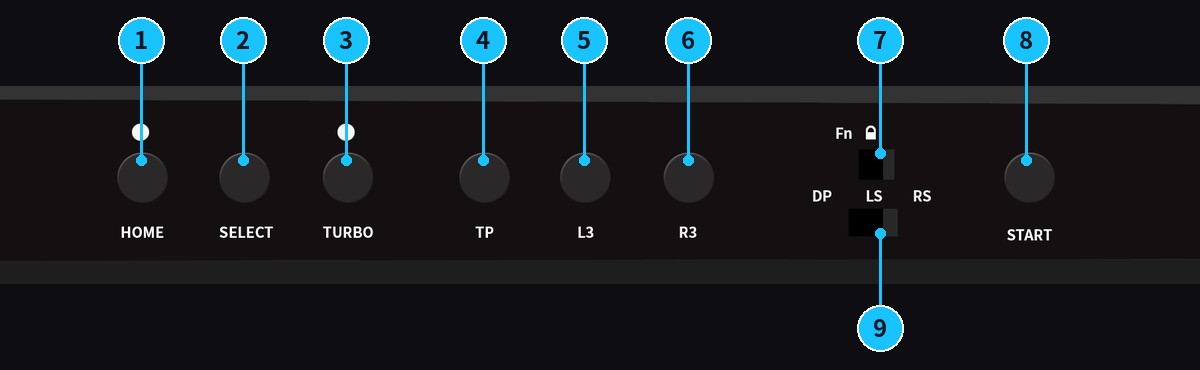
Top-side ports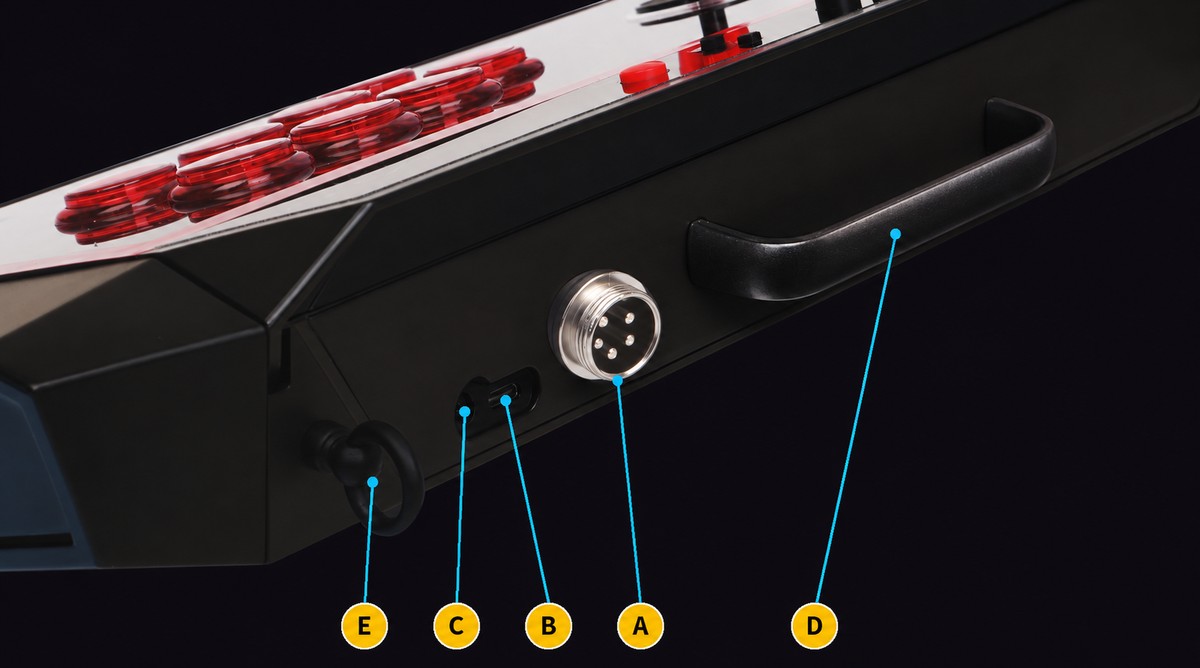
Input signals by mode ① — PlayStation · PC · Retro
Input signals by mode ② — Xbox · Nintendo
※ The numbers in parentheses under PC (X-INPUT) are the button numbers shown in the Windows game controller settings.
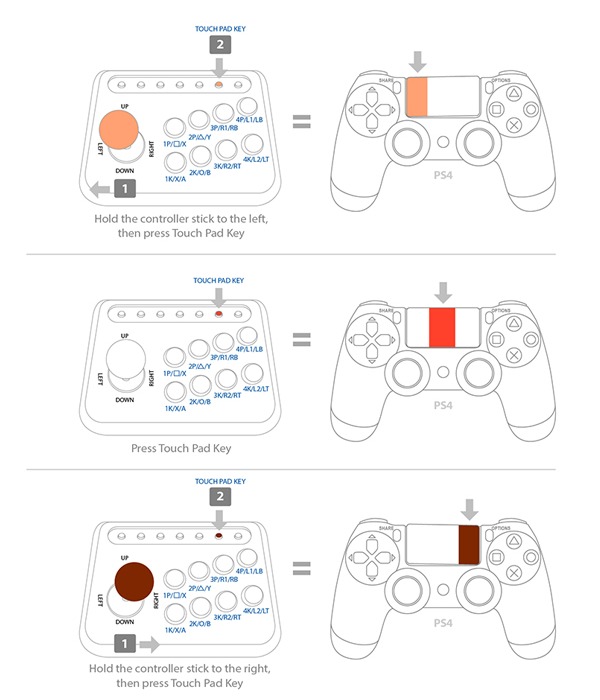
※ NEOGEO mini is shown with the default layout (TYPE A). You can switch between five layouts. (See section 5) ※ The lever signal changes with the DP · LS · RS setting. The table shows the default (DP). Changing the touchpad signal (PS4 · PS5)Pressed together with a lever direction, the 4 TP button acts as the left, center or right touchpad input.
 3. Turbo and Function Key LockTurbo (rapid fire) — 3 TURBO buttonHold TURBO and press the button you want to rapid-fire to set turbo on that button. Repeating the same operation cycles through the steps below.
Adjusting the turbo speed — Hold TURBO and move the lever to change the speed.
Function key lock — 7 Fn switchA lock switch that prevents the top function keys from being pressed by accident during a match. 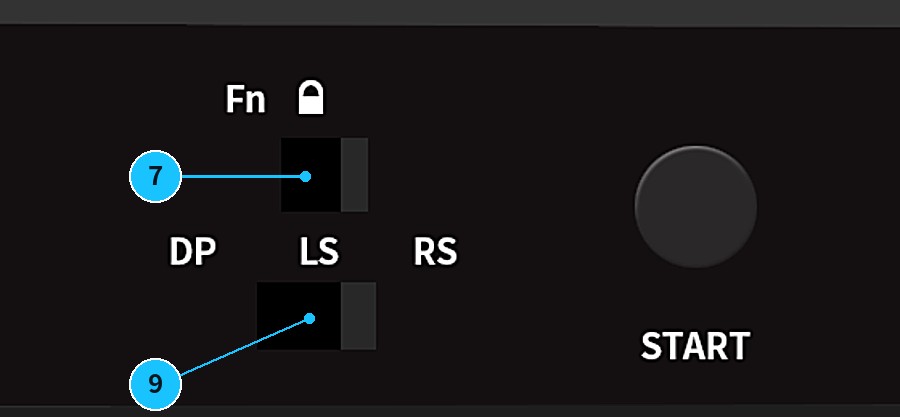
※ Keys disabled while locked: HOME, SELECT, TURBO, TP, L3, R3, START, DP · LS · RS switch
※ The lever and the 8 main buttons always work, regardless of the lock. 4. Changing the Lever Input Signal (DP · LS · RS)This selects which signal the lever sends. Most fighting games use DP (D-Pad); switch to LS for games that do not recognize the D-Pad.
Method 1 — 9 DP · LS · RS switchMove the switch on the top panel to DP / LS / RS and the change applies immediately. The switch does not work while the Fn lock is on, so turn the lock off first. Method 2 — Button combinationYou can also change it with a button combination instead of the switch. Hold START and push the lever in the corresponding direction for 3 seconds.
5. Mode Switching and Connecting to Each DeviceHow to switch modesSelect the mode before connecting USB. Hold the button(s) below while plugging in the USB cable to connect in that mode. The last connected mode is saved, so you do not need to hold any button when reconnecting to the same device. Recommended: auto-detect connection — Hold START while connecting to the console and the stick switches to that console's mode automatically.
Connecting to a PCWhen connected to a PC with the USB cable, the stick is recognized as an Xbox One controller (X-INPUT). It works on Steam right away with no extra setup; some emulators and similar programs may need a one-time input setup inside the game. ※ On operating systems older than Windows 10, the stick may not be recognized because the Xbox One driver is missing. Install the Xbox One driver from the ISTMALL download board, or connect in Xbox 360 mode (R1) or PS4 mode (△).
Connecting to a PlayStation 5 / 4 / 3Connect USB to the console, then press HOME to start using the stick. ※ On PS5 the stick works properly in fighting games only.
※ When playing PS2 games on a PS3 through backward compatibility, reconnect USB while holding □ on the PS2 game's main screen to set PS3 mode. ※ Two-player play requires two signed-in accounts. ※ A wired stick cannot power on the console. Connecting to an Xbox Series X|S / One / 360 / original XboxXbox Series X|S, One and 360 detect the stick automatically when USB is connected. For the original Xbox, connect while holding ○. ※ The original Xbox requires a USB to Xbox cable. (Sold separately)
※ A wired stick cannot power on the console. Connecting to a Nintendo Switch / Switch 2Hold × while connecting USB to the Switch · Switch 2 console or dock. ※ On the Switch, turn on "System Settings" → "Controllers and Sensors" → "Pro Controller Wired Communication".
※ A USB-C OTG cable is required to connect directly to the console without the dock. (Sold separately) ※ A wired stick cannot wake the Switch from sleep mode. Connecting to a Wii UHold × while connecting USB to the Wii U console. ※ Wii U mode works with Pokkén Tournament only.
Connecting to a NEOGEO miniHold R2 while connecting USB to the NEOGEO mini. Five key layouts are supported, and you can switch between them at any time with the combinations below.
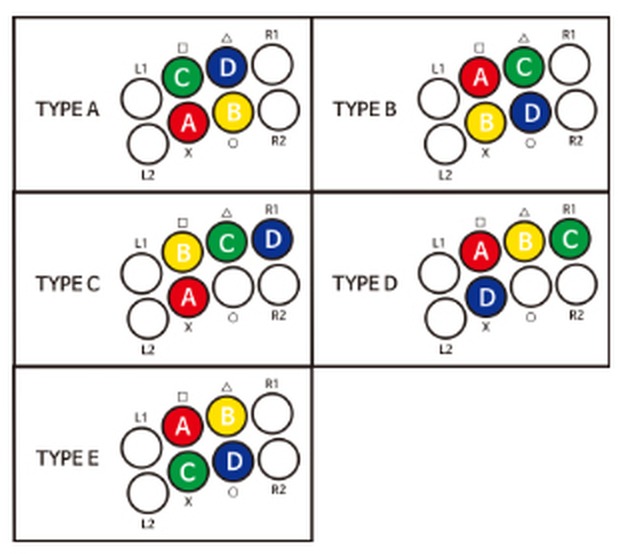 ※ A USB-C OTG cable is required to connect to the NEOGEO mini. (Sold separately)
※ The USB-C port opening on the NEOGEO mini is narrow, so some OTG cables may not fit. Connecting to a PS Classic / Mega Drive MiniHold □ + △ for PS Classic or □ + × for Mega Drive Mini while connecting USB to the console. 6. Additional OptionsThis is a ready-to-ship model built to the standard specification, with a Myoungshin Fanta gateless lever and Sanwa OBSF-30 buttons. Other options, including custom artwork and lever or button changes, cannot be applied. Only the case color can be chosen.
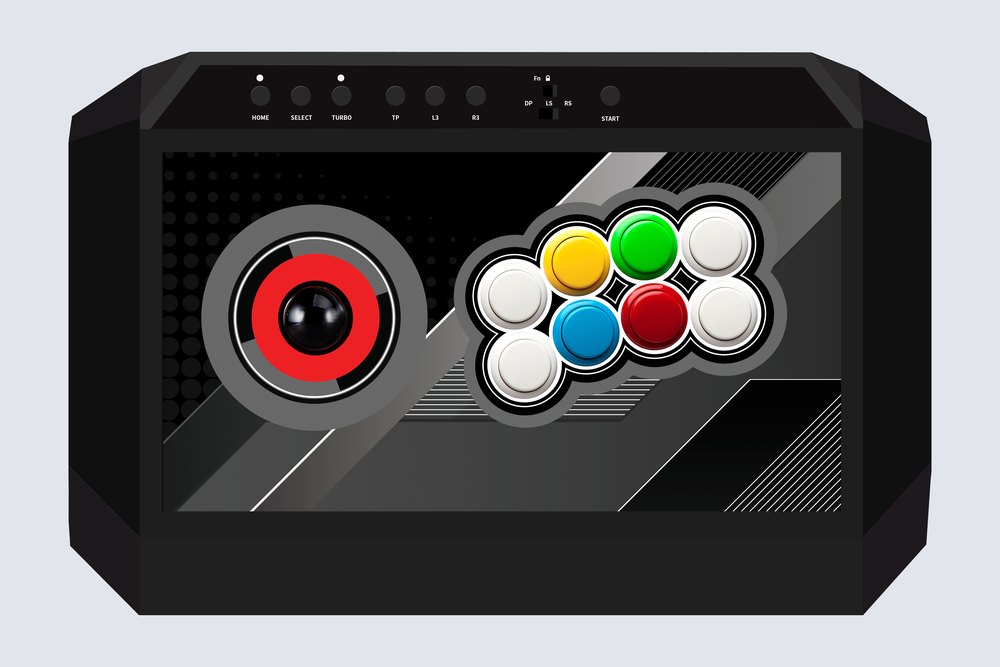 Black case 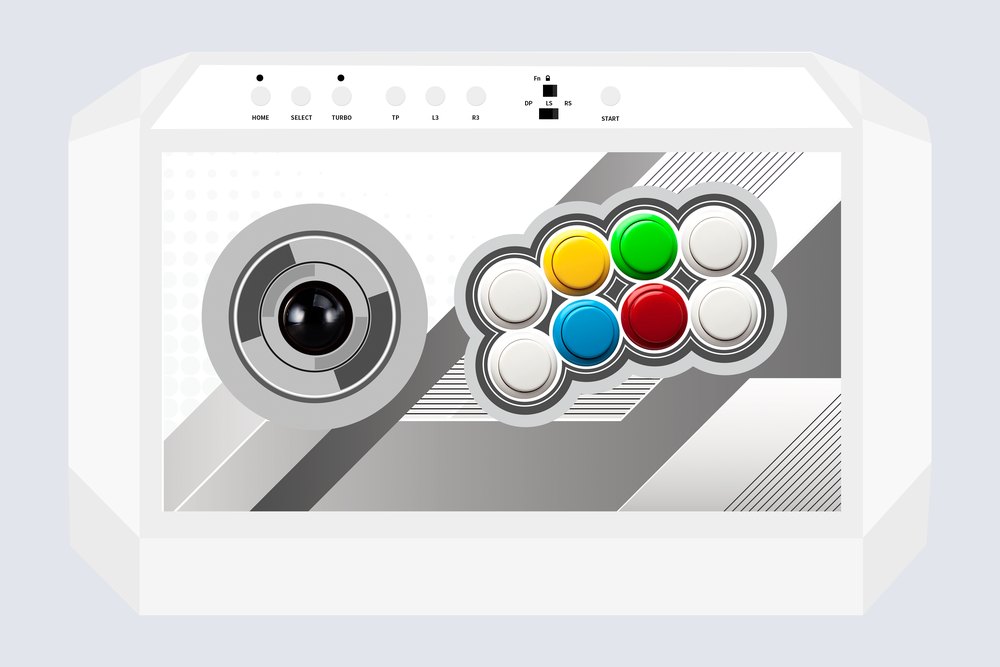 White case ※ Orders placed before 10:00 AM (Korea time) ship the same day. Orders placed after 10:00 AM ship the next day. Weekends are excluded.
7. Specifications and Package Contents
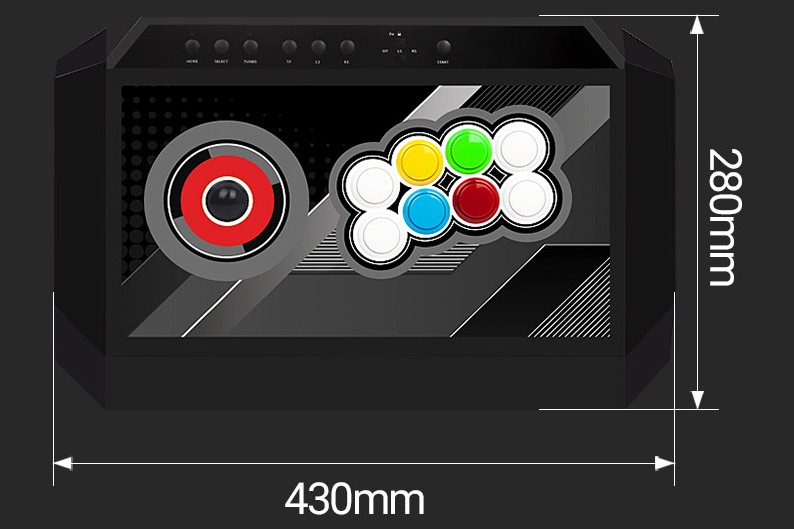 Case size: 430 × 280 mm 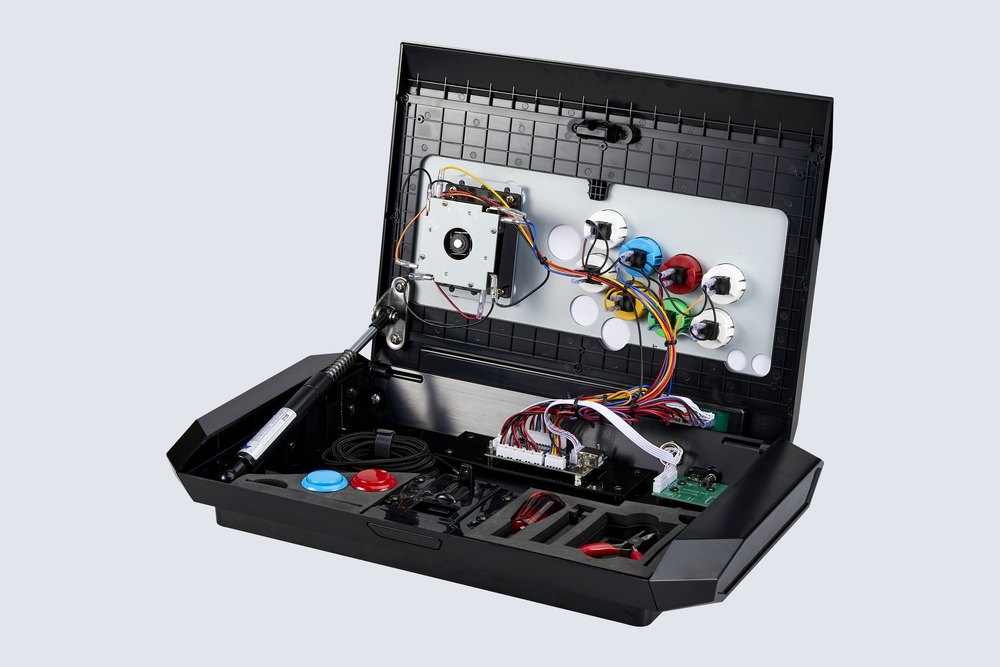 Top panel opened: storage compartment inside 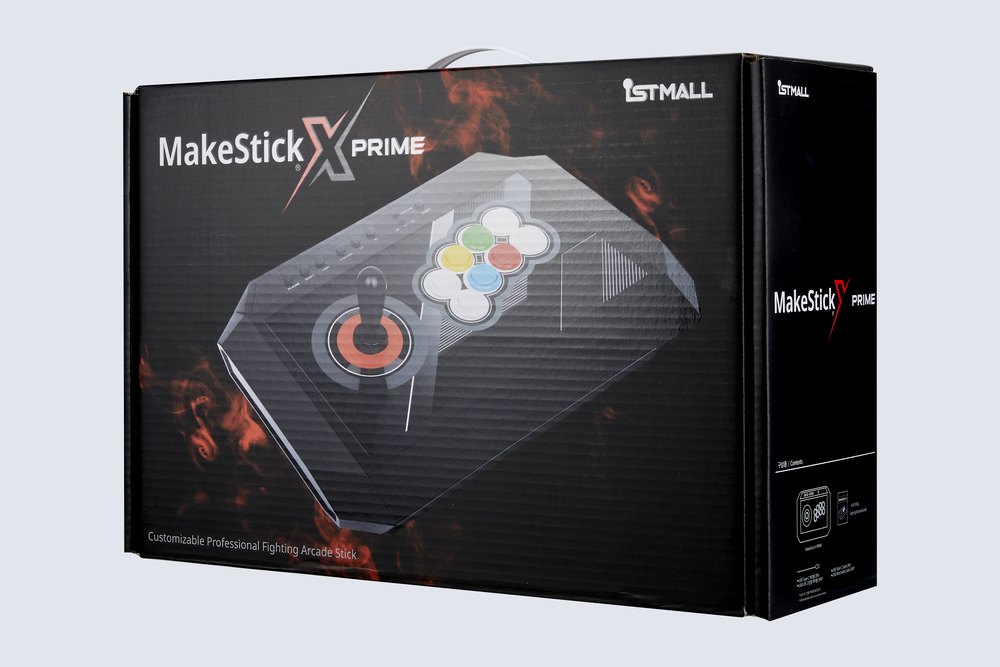 Package box 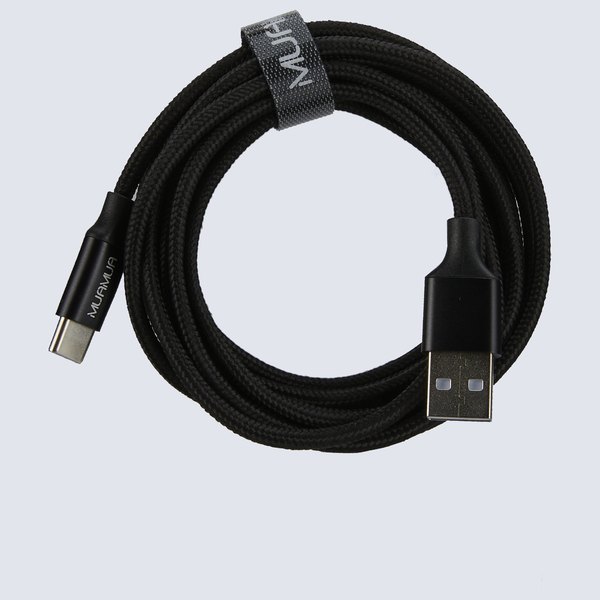 USB Type-C cable (3 m) 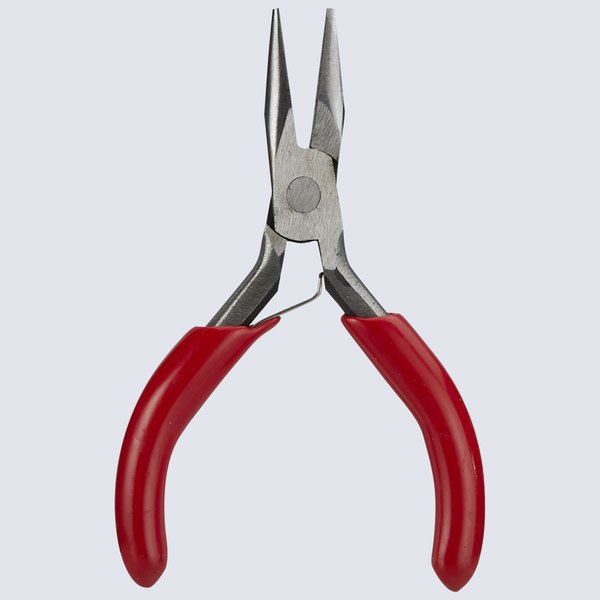 Long-nose pliers Contact and Notices
If you have any questions about the product, please email cs@istmall.co.kr or use the Q&A board.
※ Product specifications and design may change without notice for performance improvements.
※ PlayStation, PS5, PS4 and PS3 are registered trademarks of Sony Interactive Entertainment Inc. This product is not licensed by SIE.
※ Xbox Series X|S and Xbox One are registered trademarks of Microsoft. This product is not licensed by Microsoft.
※ Nintendo Switch is a registered trademark of Nintendo. This product is not licensed by Nintendo.
|