


Total Purchase Amount:
$0



ISTMALL · AUTHORIZED BROOK RETAILER
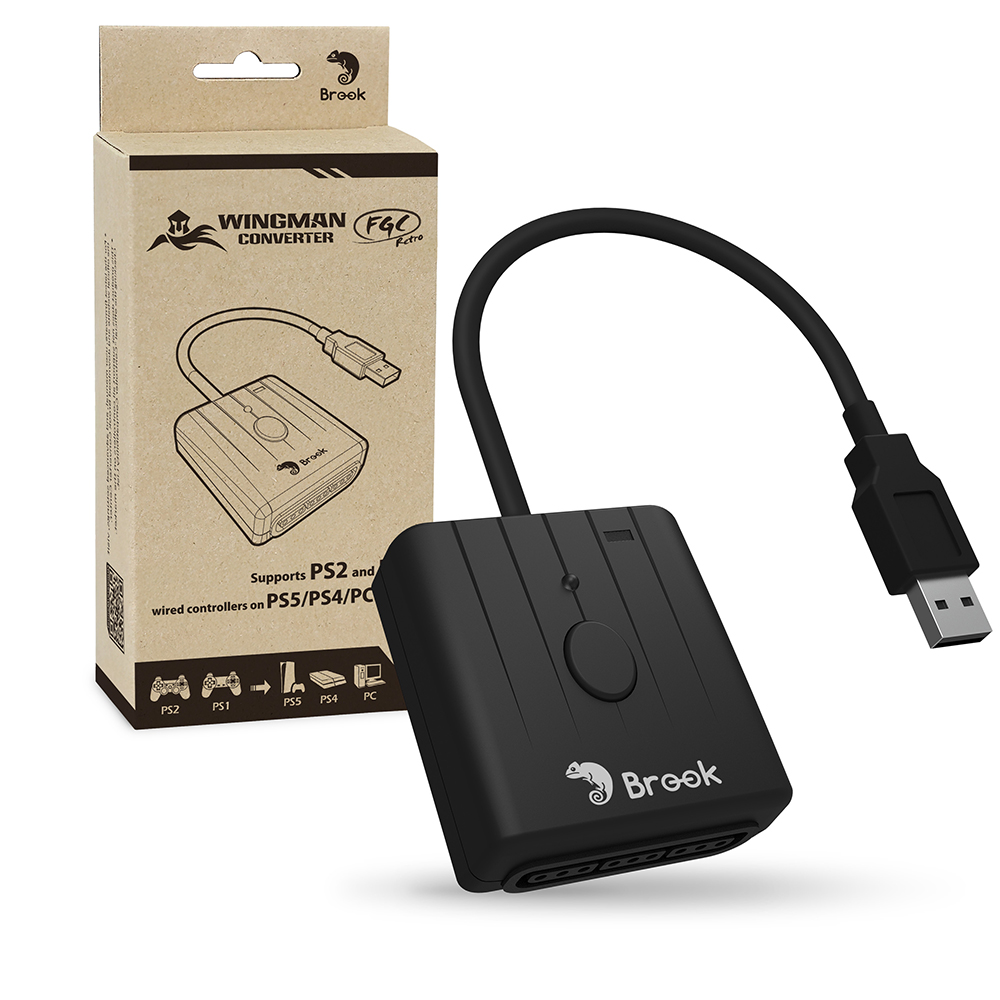
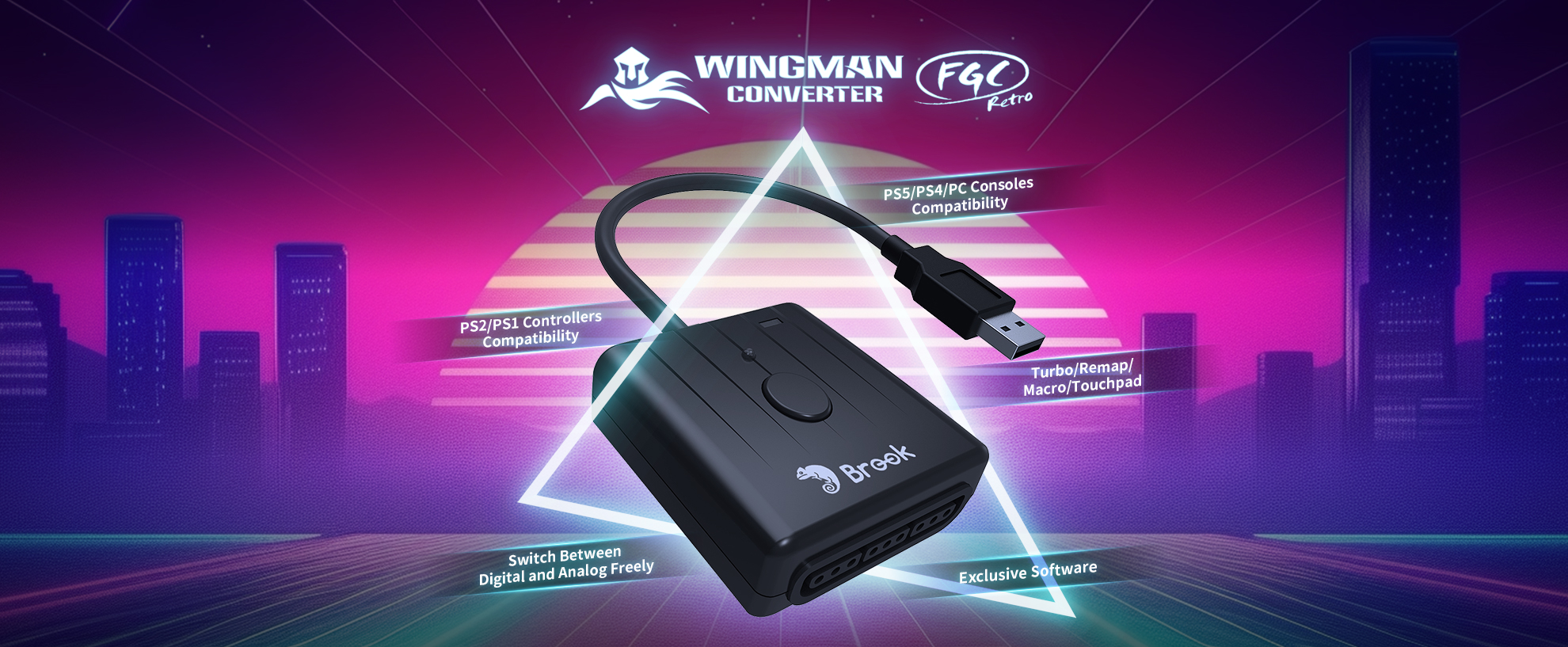
Brook Wingman FGC Retro
Bring your favorite PS1 or PS2 controller back into play.
Keep the grip, stick and button layout you know,
and use it on PS5, PS4 or PC.
Wired PS1 / PS2 controller or arcade stick
↓
Wingman FGC Retro
↓
PS5 · PS4 · PC
Connect your controller to the PS1/PS2 port, then connect the converter to your console or PC via USB. This converter does not connect modern USB controllers to an original PS1 or PS2 console.
THE FEEL YOU REMEMBER
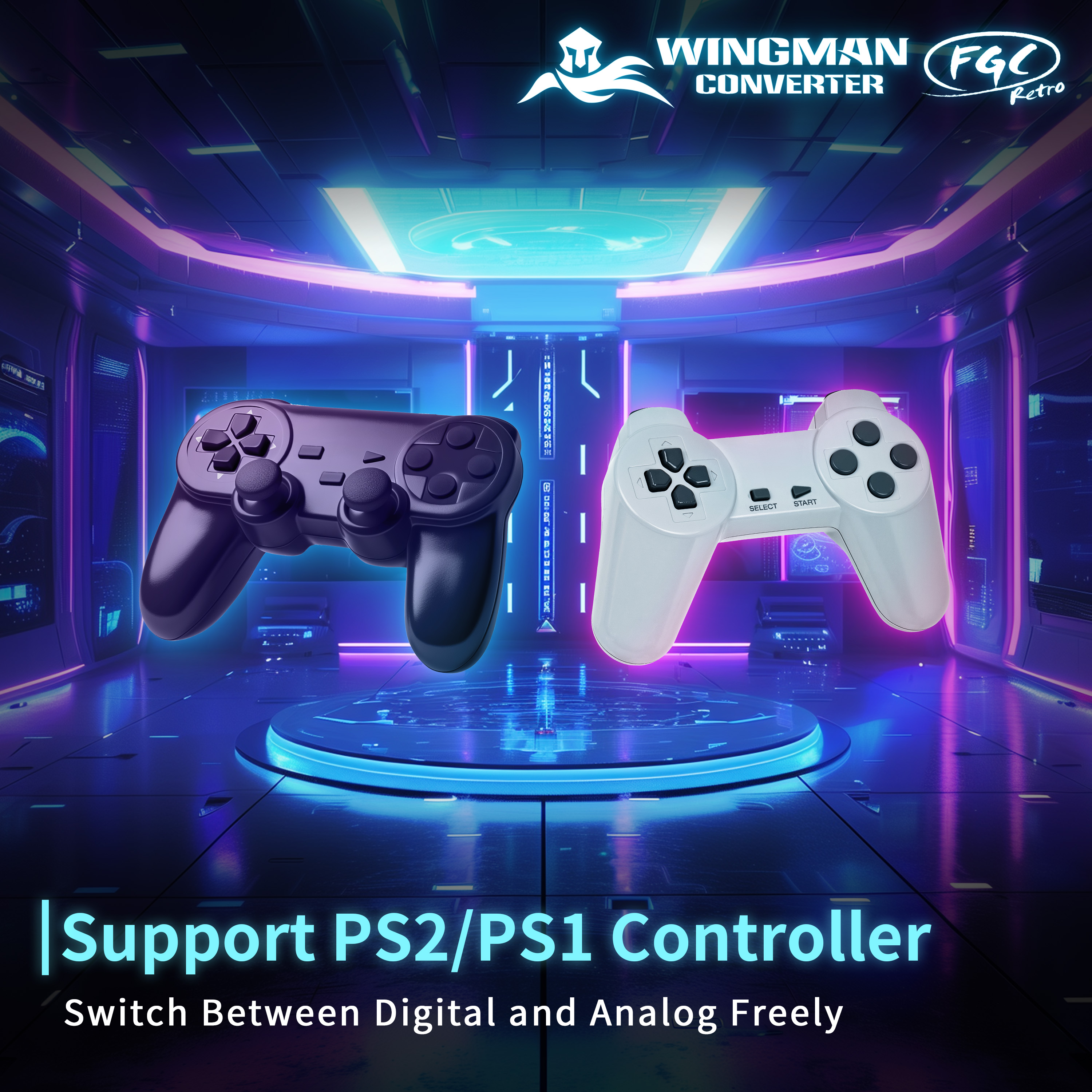
The grip of your old DualShock. The stick and button spacing you have played with for years. Keep using a compatible PS1 or PS2 controller from Brook’s official compatibility list.
Supports all game genres on PS5 and PS4
Play fighting games, action games, shooters and more. Before you play, check that your controller provides the buttons and controls your game requires.
Analog / digital mode switching · Designed for low input latency
READY FOR PC
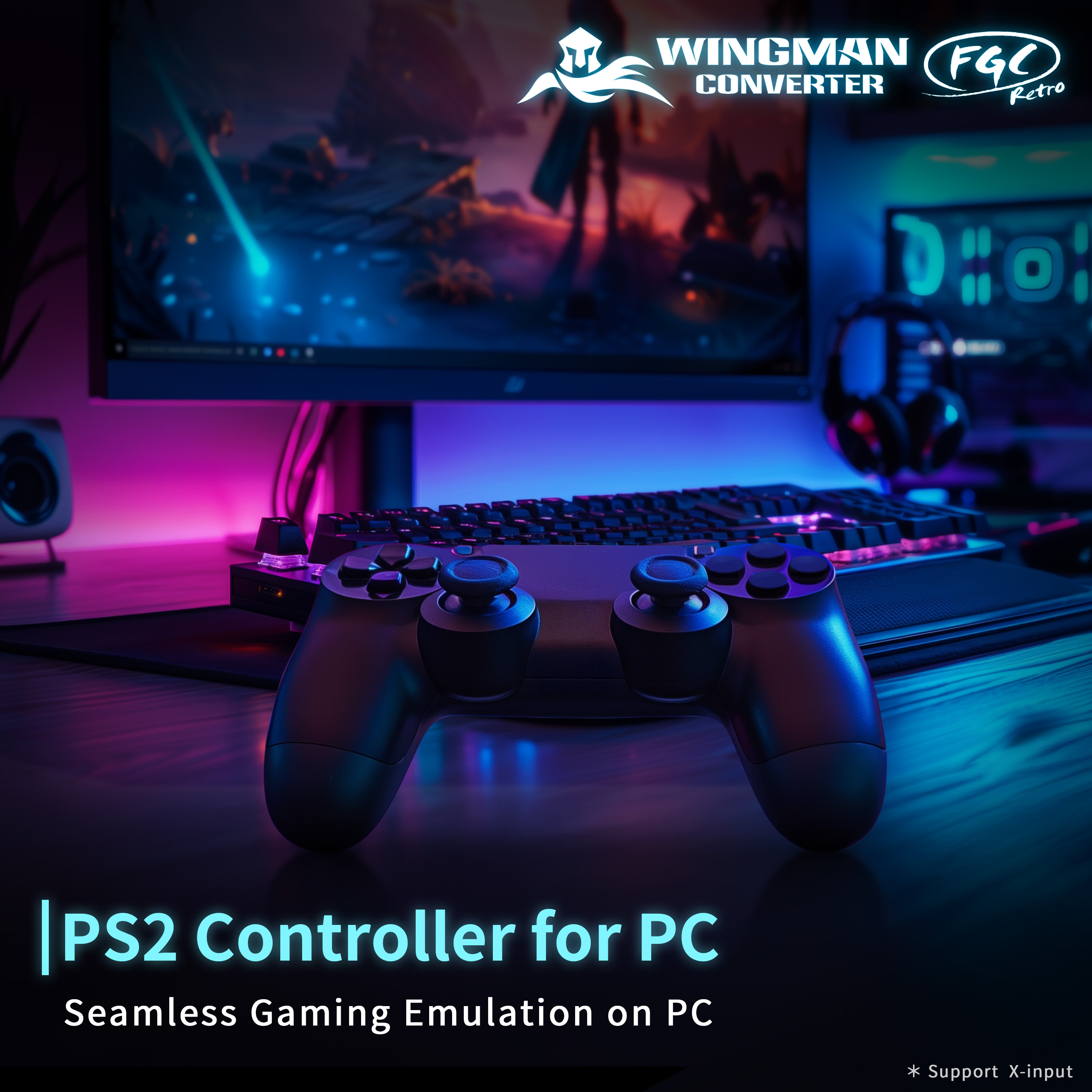
On PC, Wingman FGC Retro works in X-Input mode. Use your controller in games that support X-Input, or configure it in an emulator to bring that familiar feel to your PC setup.
Once the controller is detected, check its buttons and analog inputs in your game’s controller settings.
TURBO

Use Turbo for repeated button inputs. Choose the buttons you want to use and adjust the rapid-fire speed in Brook Converter Center.
REMAP
Change what each button does. Move frequently used actions to buttons that feel more comfortable, and set up your controller or arcade stick the way you like it.
MACRO
Create a sequence of button inputs and set how long each input lasts, along with the delay between inputs. Save the sequence for actions you repeat often.
Check the rules of your tournament or online game before using Turbo or macros.
BROOK CONVERTER CENTER

Set up Turbo, button mappings and macros in Brook Converter Center. When you finish, use the software’s sync function to save your settings to the converter.
Check the software’s firmware requirements before use. Do not run the firmware updater and Brook Converter Center at the same time.
FROM BROOK’S COMPATIBILITY LIST
Selected compatible models using a PS1/PS2 connector.
Namco
TEKKEN 5 10th Anniversary Limited Edition Joystick
Namco PS1 Arcade Stick
XGaming
X-Arcade Solo
Using a PS1/PS2 connection setup
Nuby
PS2 Street Fighter 15th Anniversary Edition Controller
Sangyo
Spital Programmable Joystick
Sony
DualShock / DualShock 2
Models with a PS1/PS2 connector
These are selected examples, not a complete list. Compatibility does not extend to every product from the same brand. USB versions and controllers with modified circuit boards require separate verification. If Brook’s list does not specify the connection mode for your model, please confirm the exact model and connection setup before ordering.
Brook also lists specialty controllers such as dance mats. Button mappings and special functions may vary by controller and game, so check your intended setup before use.
GETTING STARTED
01 · Check the firmware
Follow Brook’s official instructions on a PC to update your Wingman FGC Retro to the latest firmware.
02 · Connect to your console or PC
Plug the converter’s USB connector into the device you want to use. Each converter supports one controller at a time.
03 · Connect your PS1 or PS2 controller
Plug your controller or arcade stick into the converter’s controller port. According to the user guide, a steady red device indicator means the controller is connected.
04 · Select USB communication on PS5
On PS5, open Settings → Accessories → Controller → Communication Method and select Use USB Cable. Then press SELECT + L1 on your controller to send the PS button input and sign in to your user profile.
PS5 menu names and locations may vary with the system software version. After connecting, test the directional inputs and buttons in your game.
USEFUL BUTTON SHORTCUTS
PS / Home button
SELECT + L1
The user guide also lists the MODE button as a PS / Home input.
Options menu
START → OPTIONS on PS5 and PS4
Create / Share
SELECT + START
Acts as CREATE on PS5 and SHARE on PS4.
Touchpad and swipe inputs can also be emulated with button combinations. Refer to the button mapping chart in the official user guide for the full list.
PRODUCT DETAILS
Product / model
Brook Wingman FGC Retro
Model number: ZPP006M
Controller input
PS1/PS2 controller port
For compatible wired controllers, arcade sticks and other supported devices
Console / PC connection
USB · PS5 / PS4 / PC (X-Input)
Game support
All game genres on PS5 and PS4
On PC: X-Input-compatible games and applications with configurable controller input
Controllers per converter
One controller at a time
Features
Turbo · Button remapping · Macros
Analog / digital mode switching · PS / Home input · Touchpad emulation
Included
1 × Wingman FGC Retro converter
Controllers, arcade sticks, consoles and PCs are sold separately.
FGC Retro or Wingman PS2?
FGC Retro: PS1/PS2 controller → PS5 / PS4 / PC
Wingman PS2: Supported USB controller → PS1 / PS2 console
PRODUCT SUPPORT
Need help checking compatibility? Send us your controller’s exact model name, a photo of its connector and the console you plan to use. You can check Brook’s official list or contact ISTMALL through this product’s inquiry section.
Official product page & full compatibility list
Official user guide & firmware downloads
Download Brook Converter Center
This product converts controller inputs. Game software is not included.
Images show example setups. Consoles, controllers and arcade sticks are not included.
Official product information checked: October 18, 2026.


