


Option
- Board choose :
Additional Products
- Lever 케이블 :
- Button 케이블 :
- USB 케이블 :
- 2pin 케이블 :
Total Purchase Amount:
$0



![[IST] PC/PS3/PS4/Switch Tachyon Board](https://www.us.istmall.co.kr/storage/istmallU0/www//product/2024/16/O/product.334.171345817224088.jpeg)
ISTMALL · DESIGNED & MADE IN KOREA
TACHYON Board · Firmware v2.0
Average input latency in the 0.7ms range.
Get your inputs there sooner.
A high-performance arcade controller board designed by ISTMALL,
the makers of MAKESTICK, and manufactured in Korea.
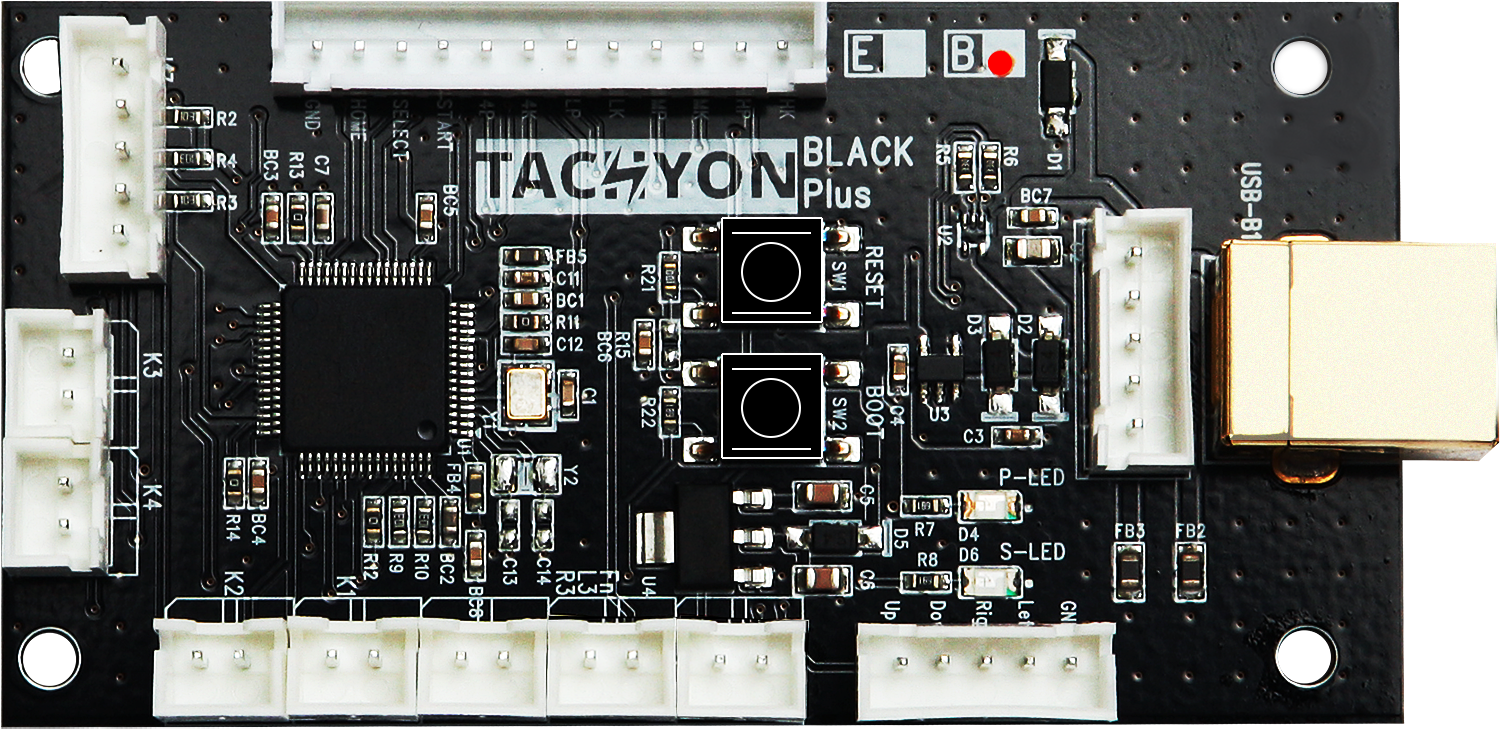
0.7ms range
Published average input latency
PC · PS3 · PS4
Nintendo Switch support
43 × 83mm
Compact design with cable connectors
* Latency figures are averages from the published v2.0 tests. They are not maximum latency figures or total latency including game processing and display output.
01 · TACHYON BOARD
Over 15 years of hands-on experience since MAKESTICK launched in 2011.
TACHYON brings together the technical knowledge gained from building arcade sticks and the input performance and ease of assembly that players ask for.
TACHYON is an original arcade controller board designed by ISTMALL and manufactured in South Korea. It is built for PC-focused players seeking low input latency and enthusiasts assembling their own custom controllers.
2011 · MAKESTICK launches
Nov 2019 · TACHYON board launches
Nov 2023 · v2.0 introduced
Faster input processing and added PS4 mode
02 · TACHYON BOARD
TACHYON v2.0
0.7ms
Average input latency
Average across three test runs: approx. 0.746–0.749ms
USB polling interval: 1ms
Firmware v2.0 improves input processing speed, achieving average input latency below 1ms in the published tests. Low latency is a key strength for PC players who value responsive controls.
The published results are summarized below. Minimum and maximum values are included alongside the average so you can see the measured range.
| Test | Minimum | Average | Maximum |
|---|---|---|---|
| Run 1 | 0.430ms | 0.747ms | 1.280ms |
| Run 2 | 0.430ms | 0.746ms | 1.250ms |
| Run 3 | 0.440ms | 0.749ms | 1.240ms |
Values are rounded to three decimal places. The original sheet displays the averages to one decimal place as 0.7ms.
How to Read These Results
These figures describe board input latency, measured using the Input Lag Science methodology. They exclude display, game-processing and network latency. Results can vary with connection mode, host, firmware and test conditions.
03 · TACHYON BOARD
0.7ms is 0.0007 seconds. Compared with an example board that has 3ms of input latency, the signal arrives 2.3ms sooner. You may not feel this difference on every press. However, if the game's input-sampling deadline falls between the two arrival times, the inputs can be registered in different frames.
TACHYON's published averages are approximately 0.746–0.749ms. To explain the principle, the examples below assume a board with a constant 0.7ms delay and a comparison board with a constant 3ms delay. These charts do not represent measurements of a particular competing product or actual match results.
Assumptions: the game reads input 60 times per second, every 16.67ms; both switches activate electrically at the same instant; both inputs share the same sampling deadline; press timing is uniformly distributed within a frame; all other latency is equal; and each input is held until sampled.
TACHYON illustrative value · 0.7ms
Comparison example A · 3ms
Comparison example B · 4ms
Comparison example C · 6ms
Full bar length = 6ms. Examples A, B and C use hypothetical values for illustration.
The 0.7ms board registers
one game frame earlier
The game's sampling deadline falls between the arrival of the two signals.
Both boards register
in the same game frame
Despite arriving at different times, both signals reach the same sampling deadline.
Blue: one frame earlier, 13.8% · Light: same frame, 86.2%
Calculation: (3 − 0.7) ÷ (1000 ÷ 60) × 100 = 13.8%
For example, if input is sampled 1ms after the press, the 0.7ms signal arrives in time while the 3ms signal waits for the next frame. If sampling is 5ms away, both signals register in the same frame.
Reducing input transmission time can matter during tight input windows in fighting games or timing judgments in rhythm games. Actual results depend on the game's input buffer, move startup, judgment rules, network conditions and your timing. The 13.8% figure is a theoretical sampling probability, not a win-rate advantage.
The chart below uses the first sampling opportunity available to a hypothetical zero-latency input as its baseline. It shows how often board latency causes an input to miss that opportunity and wait one additional frame. This baseline differs from the two-board comparison above.
Assumed 0.7ms · First sample 95.8% / Extra wait 4.2%
Assumed 3ms · First sample 82% / Extra wait 18%
Assumed 4ms · First sample 76% / Extra wait 24%
Assumed 6ms · First sample 64% / Extra wait 36%
Blue: registered at the first sample · Orange: waits until the next frame
| Assumed Latency | First Sample | One Extra Frame |
|---|---|---|
| 0.7ms | 95.8% | 4.2% |
| 3ms | 82% | 18% |
| 4ms | 76% | 24% |
| 6ms | 64% | 36% |
Calculation: extra-wait probability = latency (ms) ÷ 16.67ms × 100. This applies only under the assumptions above, with latency shorter than one frame and uniformly distributed press timing.
This extra wait is not a dropped video frame, reduced FPS or a lost button input. It describes which input-sampling deadline receives the signal, rather than a video “frame skip.”
Background: Input Lag Science · Within-frame input probability and test methodology
04 · TACHYON BOARD
Product names and advertising often use phrases such as “zero input lag” or “zero delay.”
Those phrases alone do not tell you how long it actually takes for a button press to reach the host. Check what was measured and the conditions used to obtain the result.
The minimum is the shortest delay recorded across repeated tests. A press that happens to align with a favorable transmission time can produce a low value. A 1ms minimum does not mean a 1ms average.
The average combines the results of many presses. To compare repeated-use performance, look at the average, maximum and distribution of delays alongside the minimum.
For example, a result showing a 1ms minimum and a 4–6ms average means the fastest recorded input took 1ms, while repeated inputs averaged 4–6ms. A “zero” product name or a low minimum does not make it a 1ms-average or zero-latency product. These are example figures, not measurements of a named product.
| What to Compare | What to Check |
|---|---|
| Minimum · Average · Maximum | Look beyond the single fastest result. Check the repeated-test average and range, plus the distribution and standard deviation where available. |
| What Was Measured? | Distinguish board latency from physical input to USB reporting, total latency through the display, and the polling interval. |
| Are Conditions Comparable? | Check the PC or console, wired or wireless connection, input mode, firmware, polling settings and measurement equipment. |
| Is the Data Public? | Look for the model name, number of trials, measurement method and published results. |
TACHYON v2.0 publishes average and maximum results as well as the minimum. Review the table above and the original data, and compare other products using the same methodology wherever possible. If no data is available, consider that uncertainty when deciding what to buy.
Original TACHYON v2.0 measurement sheet · Understanding minimum, maximum, average and distribution
05 · TACHYON BOARD
Joystick and button cables connect directly to the board's connectors. With suitable cables and verified pin assignments, TACHYON can be used in a new controller build or to replace an existing arcade stick PCB.
Supports XInput for PC, PS3, PS4, Switch and 1P/2P keyboard modes. Joystick output can also be switched between D-Pad, left stick, right stick and other available settings.
Supports SOCD handling for controllers with directional buttons, plus Turbo through the Fn connector. Add the buttons and wiring needed for your chosen functions.
06 · TACHYON BOARD
| Platform | Support |
|---|---|
| PC | Supports XInput and keyboard modes. Choose the input method supported by your game. |
| PlayStation 3 | Use PS3 controller mode. |
| PlayStation 4 | Use PS4 controller mode. |
| Nintendo Switch&2 | Use Switch controller mode. |
| PlayStation 5* | For PS4 titles running on PS5 only. Native PS5 games are not supported by the TACHYON board alone. |
Check Which Version of the Game You Are Running on PS5
PS4 and PS5 editions of the same game are different. When connecting TACHYON to a PS5 in PS4 mode, support is limited to the PS4 version of the game.
For supported PS5 fighting games, a compatible converter such as the Wingman FGC is required. Check the converter's supported controller and game lists before purchase. Wingman FGC compatibility
07 · TACHYON BOARD
Connection-mode selection takes place when plugging in USB. Joystick-output settings can be changed while connected.
| Mode | Hold When Connecting USB |
|---|---|
| PC · XInput | START + □ |
| PS4 | START + ○ |
| Nintendo Switch | START + △ |
| PS3 | START + × |
| 1P Keyboard | START + L1 |
| 2P Keyboard | START + R1 |
Button labels above use PlayStation notation. Hold the listed buttons while connecting USB to select a mode. The last setting is remembered, so you do not need to select it again for the same setup.
| Output | Press While Connected |
|---|---|
| D-Pad · Default | L1 + R1 + SELECT + ↑ |
| Left Analog Stick · LS | L1 + R1 + SELECT + ← |
| Right Analog Stick · RS | L1 + R1 + SELECT + → |
| Left Analog Stick + D-Pad | L1 + R1 + SELECT + ↓ |
D-Pad is recommended for general use.
D-Pad output corresponds to the directional pad on a gamepad.
Most fighting games can be controlled entirely with D-Pad input.
Some games outside the fighting genre require left analog stick (LS) input. Check which input type your game supports before changing the setting.
08 · TACHYON BOARD
The diagram below shows the board with the USB-B port pointing upward. Locate the joystick and button connectors first, then use the pin assignments and signal tables below to complete your wiring.
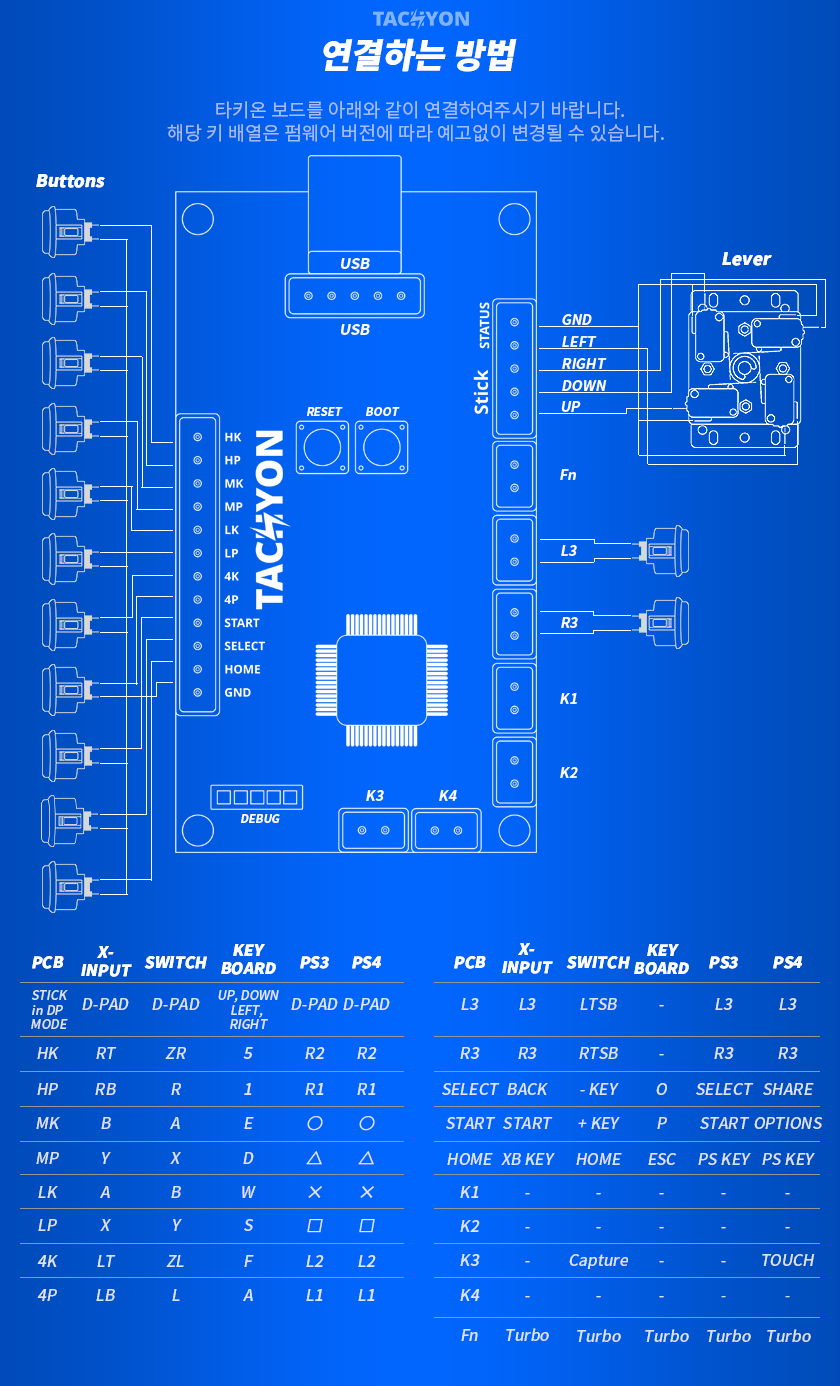
Click the diagram to view it at its original size. Its Korean heading means “How to Connect”; the note explains that pin assignments may change with firmware revisions. RESET / BOOT identifies development switches, which are not fitted to the retail product.
The positions below are listed from top to bottom in the diagram above. The order may look reversed when viewing the back of the board or the opposite end of a cable. Always confirm the printed signal labels on the board before connecting.
Left · 12-pin Button Connector
| Order | Board Signal |
|---|---|
| 1 | HK |
| 2 | HP |
| 3 | MK |
| 4 | MP |
| 5 | LK |
| 6 | LP |
| 7 | 4K |
| 8 | 4P |
| 9 | START |
| 10 | SELECT |
| 11 | HOME |
| 12 | GND |
Upper Right · 5-pin Joystick Connector
| Order | Board Signal |
|---|---|
| 1 | GND |
| 2 | LEFT |
| 3 | RIGHT |
| 4 | DOWN |
| 5 | UP |
GND Is the Common Ground
Keep button signal wires and GND correctly assigned. Do not rely on wire colors alone; check both the board labels and your cable's pin assignments.
| Location | Connector / Function |
|---|---|
| Top | USB-B · Connect to a PC or console with a USB cable |
| Directly Below USB-B | 5-pin USB · Connect a board-side USB cable |
| Below the Right-side Joystick Connector Top → Bottom |
Fn → L3 → R3 → K1 → K2 Separate 2-pin connectors. See the mode-specific signal tables below. |
| Bottom Center Left → Right |
K3 → K4 · Separate 2-pin connectors |
| Bottom Left | DEBUG · Development connector marking |
The supplied diagram does not identify the individual power/data pins of the 5-pin USB connector or the signal/GND order within the 2-pin connectors. Use the appropriate cables and check the board markings instead of guessing these assignments.
The output from a board connector depends on the selected mode. Find the printed board label in the first column, then check the output for your chosen mode.
PC · XInput / Nintendo Switch
| PCB Label | XInput | Switch |
|---|---|---|
| Joystick · D-Pad | D-Pad | D-Pad |
| HK | RT | ZR |
| HP | RB | R |
| MK | B | A |
| MP | Y | X |
| LK | A | B |
| LP | X | Y |
| 4K | LT | ZL |
| 4P | LB | L |
| L3 | L3 | LTSB |
| R3 | R3 | RTSB |
| SELECT | BACK | − KEY |
| START | START | + KEY |
| HOME | XB KEY | HOME |
| K1 | — | — |
| K2 | — | — |
| K3 | — | Capture |
| K4 | — | — |
| Fn | Turbo | Turbo |
PlayStation 3 / PlayStation 4
| PCB Label | PS3 | PS4 |
|---|---|---|
| Joystick · D-Pad | D-Pad | D-Pad |
| HK | R2 | R2 |
| HP | R1 | R1 |
| MK | ○ | ○ |
| MP | △ | △ |
| LK | × | × |
| LP | □ | □ |
| 4K | L2 | L2 |
| 4P | L1 | L1 |
| L3 | L3 | L3 |
| R3 | R3 | R3 |
| SELECT | SELECT | SHARE |
| START | START | OPTIONS |
| HOME | PS KEY | PS KEY |
| K1 | — | — |
| K2 | — | — |
| K3 | — | TOUCH |
| K4 | — | — |
| Fn | Turbo | Turbo |
Keyboard Signals
| PCB Label | Keyboard |
|---|---|
| Joystick · D-Pad | ↑ / ↓ / ← / → |
| HK | 5 |
| HP | 1 |
| MK | E |
| MP | D |
| LK | W |
| LP | S |
| 4K | F |
| 4P | A |
| SELECT | O |
| START | P |
| HOME | ESC |
| L3 / R3 / K1 / K2 / K3 / K4 | — |
| Fn | Turbo |
Symbols and Labels
—: No signal assigned in the official diagram
LTSB / RTSB: Left / right stick press
− KEY / + KEY: Switch − / + buttons
TOUCH: PS4 touchpad button
Fn · Turbo: Rapid-fire function
Using the K3 Connector
K3 outputs Capture in Switch mode and TOUCH in PS4 mode. No signal is assigned to K3 for XInput, PS3 or keyboard mode in the official table.
In the keyboard column, O is the letter O; 1 and 5 are number keys. These assignments follow the official diagram, which does not list separate mappings for 1P and 2P keyboard modes.
The joystick row assumes D-Pad mode. See the earlier setup instructions to select left- or right-stick output. Pin assignments and signals may change with firmware revisions.
SOCD Modes for Leverless Builds
Hold Left + Right while connecting USB: Last Input
Hold Up + Down while connecting USB: Neutral
SOCD determines how simultaneous opposite directions are handled. For tournament use, check the settings required by the event.
09 · TACHYON BOARD
A stable power supply and signal connection are important when using TACHYON. ISTMALL recommends connecting directly to a rear motherboard USB port on your PC. Follow the connection and troubleshooting guidance below.
Connect TACHYON directly to your PC without a standard USB extension cable or USB hub. When troubleshooting, also bypass hubs built into monitors or keyboards and hubs shared with other devices.
TACHYON → Suitable USB cable → Rear motherboard USB port
On a desktop PC, use a rear motherboard port first. On a laptop, connect directly to a built-in USB port without a hub. Replace damaged cables or cables with unreliable connections.
Use an active USB repeater cable with an external power supply.
This is different from a passive extension cable or a powered USB hub. Check the supported USB standard, data transmission, external power requirements and compatibility with TACHYON. Use the shortest length you need.
These recommendations are intended to improve connection stability. They do not mean every hub adds a fixed number of milliseconds, or that a repeater reduces game or display latency. If a problem occurs, first compare using a short cable connected directly to the PC.
10 · TACHYON BOARD
The response you see on screen depends on more than the controller board. A board latency in the 0.7ms range does not mean a 0.7ms response on screen. Game processing, PC settings and the display add time of their own.
During online play, the game's networking method, connection quality and server conditions can also affect how responsive it feels.
| Check | What to Do |
|---|---|
| 1. USB Connection | Remove hubs and standard extension cables, then connect directly to a rear USB port. Compare using another known-good cable and USB port. |
| 2. Input Operation | Use a PC input test to check for missing, interrupted or duplicate inputs. Also check the board's mode and the game's button assignments. |
| 3. Game / Emulator | Repeat the same scene offline. Check unstable FPS or frame times, internal game latency, and the emulator's core, video driver and buffer settings. |
| 4. Display / PC | Check your monitor or TV's game mode or low-latency mode. Compare image processing, synchronization, frame buffering and demanding background tasks one setting at a time. |
| 5. Online Connection | If offline play is normal but online play feels slow, first check ping, jitter, packet loss and the game's network settings. |
| 6. Another PC | Check whether the same symptom occurs when connected directly to another PC. Contact us with your input mode, game, cable details and a video of the issue. |
Response depends on the original game's logic, the emulation core, video synchronization and buffer settings. Emulation is not automatically slow. RetroArch settings such as Frame Delay, GPU synchronization and Run Ahead affect different parts of the latency path, so compare them one at a time.
Run Ahead reduces internal game latency; it does not measure controller-board latency. Availability depends on core support and PC performance, and overly demanding settings can cause stutter. Libretro latency guide · Official Run Ahead guide
In ISTMALL's sales and inspection experience, no case of persistent input lag has so far been confirmed as being caused by a faulty TACHYON board. If the delay is noticeable only in a game, first check the connection, software and display conditions described above.
This does not rule out every possible hardware issue. If missed inputs, disconnections or other symptoms persist when connected directly to another PC, contact us to arrange a product inspection.
11 · TACHYON BOARD
You can check input operation and compare different setups without specialist equipment. However, a normal PC test screen cannot precisely verify the board's 0.7ms latency. Choose the following methods according to what you want to check.
Windows + R → Enter joy.cpl → Select controller → Properties → Test
Connect in a PC controller mode, then repeatedly operate the joystick and buttons. Watch for missing or interrupted button and direction indications. D-Pad input may appear under POV or directional-pad controls.
What it shows: Device recognition and input operation.
What it cannot show: Precise latency from switch contact to input delivery. Do not estimate milliseconds simply by watching the on-screen indicators.
Record the button and monitor together using genuine 240fps high-speed recording. Keep the offline game, scene, FPS and monitor settings identical. Count frames from visible button movement to the first change on screen.
One frame of 240fps footage lasts approximately 4.17ms. A five-frame gap, for example, is about 20.8ms. This observed interval includes mechanical movement, game processing and the display.
Repeat 20–30 times per condition and compare the median and range. Calculate using the original recording frame rate, not the slow-motion playback frame rate.
Finger movement and actual switch contact do not occur at exactly the same time. The recording frame interval and the position of the response on screen also affect the result. A single 240fps recording cannot precisely distinguish 0.7ms from 3ms. Use this method for rough comparisons of larger differences between setups.
With the default hotkeys, press P to pause → hold a direction on the controller → press K to advance one frame at a time. Let N be the number of steps until the character first moves. Libretro's guide treats N − 1 as the extra frames of internal game latency. If movement appears after three presses of K, the additional delay is two frames.
Check your bindings if you have changed the hotkeys. Results can vary with the core, game and Run Ahead settings. This checks internal game behavior, not board, USB or display latency. Official frame-advance measurement guide
Measuring actual board latency requires identifying both the moment the electrical input occurs and the moment the USB host or PC receives it. Input Lag Science's USB-host method and hardware-based button tests such as GPDL examine this part of the input path. Results from different measurement endpoints and equipment are not directly interchangeable. Contact us if you need an inspection with suitable test conditions.
Input Lag Science methodology · GPDL button-latency measurement
Polling interval and actual button-input latency are different measurements. A 1000Hz rate corresponds to a 1ms interval, but does not guarantee 1ms button latency once internal input processing and transmission timing are included.
The developer of Polling by Gamepadla explains that the tool measures intervals between continuous analog-state changes, which differs from conventional latency measured from a button press to its response. Check what a test program's millisecond figure represents before interpreting it. Polling developer's explanation
Windows input-check references: Checking controller recognition · Microsoft Control Panel commands
12 · TACHYON BOARD
English-language community review · Reddit r/fightsticks · Feb 2025
A PC player using a MAKESTICK PRIME leverless controller with a TACHYON board praised its responsiveness and described adjusting their own input timing. Their controller also used Qanba Gravity KS buttons. This is a personal impression of the complete setup, with no measured comparison against other boards.
Summary of an English-language community post. Individual experiences vary with the setup, buttons and playing style. This report is not a benchmark or a guarantee of the same feel on every controller.
13 · TACHYON BOARD
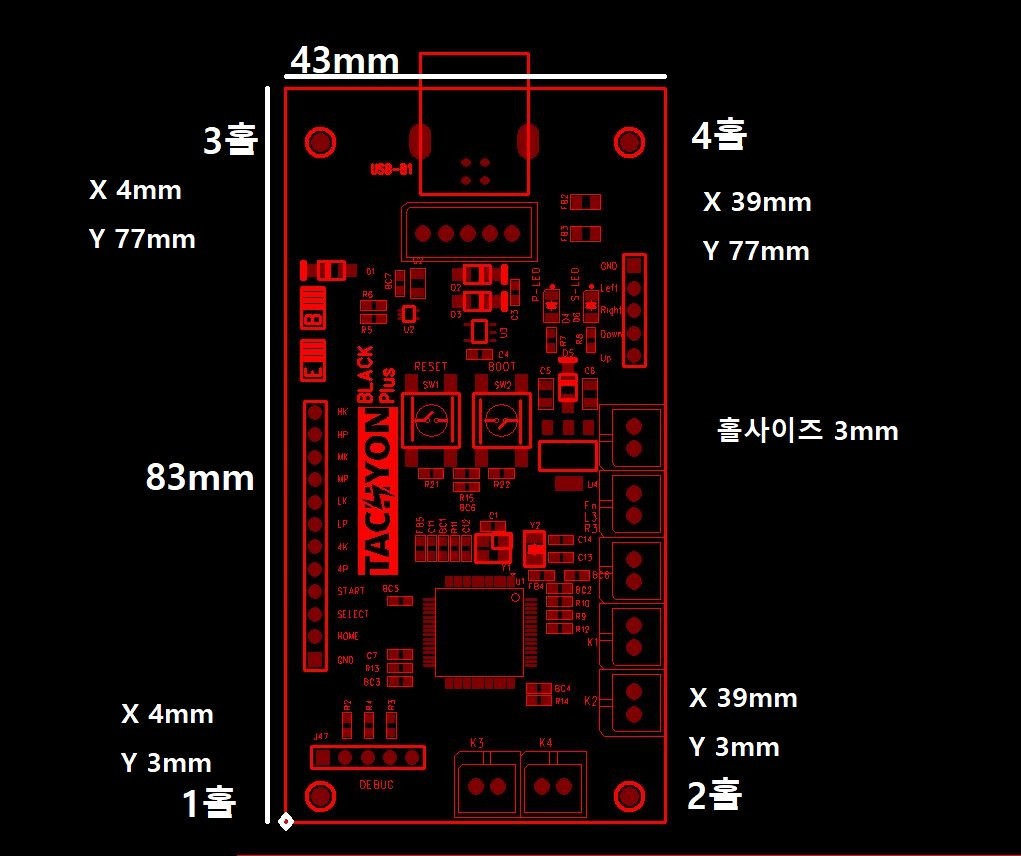
| Item | Specification |
|---|---|
| PCB Dimensions | 43 × 83mm |
| Mounting Hole Diameter | 3mm |
| Hole-center Coordinates | Origin: lower-left corner of the drawing Hole 1 (4, 3) · Hole 2 (39, 3) Hole 3 (4, 77) · Hole 4 (39, 77) Unit: mm |
| Weight | Approx. 20g |
Allow space for the protruding USB port, cable connections and bends, and mounting spacers in addition to the board itself. Check the clearance inside your enclosure before installation.
14 · TACHYON BOARD
0.7ms describes average input latency. The averages of the three published test runs are approximately 0.746–0.749ms, with an overall measured minimum of 0.430ms and maximum of 1.280ms. Results may vary with the system environment.
The board and connection cables are sold separately. Choose the cables needed for your joystick, number of buttons and USB connection method.
Joystick: a suitable 5-pin or 8-pin joystick cable.
Buttons: a 12-pin button harness.
USB: a fixed 5-pin USB connection cable or a USB-A male to USB-B male cable.
For installation in another brand's arcade stick, the existing cables may use different connectors or pin assignments. Confirm compatibility before ordering.
Yes. The two center switches are development-mode components and have been removed from recent production units. The RESET / BOOT labels in photos or on the PCB may therefore differ from the components actually fitted.
Upgrading older firmware to v2.0 requires sending the board in for inspection and updating because of the security module requirements. Support can vary by board version; please contact ISTMALL first.
15 · TACHYON BOARD
| Item | Details |
|---|---|
| Product Name | TACHYON Board |
| Manufacturer | IST Solution Co., Ltd. |
| Brand | ISTMALL |
| Country of Manufacture | South Korea |
| Original Release | November 2019 |
| Version Covered | Firmware v2.0, introduced in November 2023 |
| Supported Platforms | PC / PS3 / PS4 / Nintendo Switch PS5 support is limited to PS4 games |
| Input Modes | XInput · PS3 · PS4 · Switch · 1P/2P keyboard |
| Connection | Wired USB · Joystick and button connectors |
| Dimensions / Weight | 43 × 83mm / Approx. 20g |
| Optional Items | Joystick cable / 12-pin button harness / USB cable / 2-pin cable |
| Product Inquiries | ISTMALL · 02-706-2242 |
A controller built around you.
TACHYON at its heart.
Designed by ISTMALL. Manufactured in Korea.
Product and Performance References
Official product information (Korean) · v2.0 announcement (Korean) · Input-latency results · Official wiring diagram and dimensions


